Operate with Confidence.
Smarter control over your sales, inventory and e-Invoicing — built to support businesses across different industries.


Manage Smarter Grow Better
Explore how AutoCount supports essential business operations — from accounting and customer transactions to inventory, point-of-sale activities and Malaysia e-Invoicing. See the software interfaces and follow practical workflows before deciding which solution fits your business.
One business. Different solutions, connected.

Select a highlighted area in the illustration or use the choices below.
AutoCount Business Ecosystem
Cloud-based Accounting
Access accounting information through a browser-based environment, where supported by your chosen AutoCount Cloud subscription.
- Cloud workflows
- Remote access
- Cloud reporting
AutoCount Business Ecosystem
Accounting & Finance
Manage sales and purchase documents, receivables, payables, general ledger transactions and financial reporting within the Accounting product.
- Sales & purchases
- General ledger
- Financial reports
AutoCount Business Ecosystem
Retail Point of Sale
Handle front-counter transactions and related POS operations. Available capabilities depend on the POS edition, setup and licensed modules.
- Retail checkout
- POS payments
- Sales reporting
AutoCount Business Ecosystem
Human Resources
Support employee administration and HR-related workflows through the separate AutoCount HRMS offering; features depend on the HRMS solution selected.
- Employee records
- HR operations
- HR reporting
AutoCount Business Ecosystem
Mobile Sales Operations
Support salespeople managing customer visits, orders and related field-sales work, subject to the product and integration configuration.
- Sales activities
- Customer visits
- Orders
AutoCount Business Ecosystem
Connected Business Data
Connect relevant business processes and applications through supported integrations, reducing the need to manually re-enter the same information.
- Data exchange
- Connected workflows
- Integration options
See the Actual Software Behind the Workflow.
Explore 36 software screens across eight functional areas. Choose a module on the left, select a feature, and see how it supports everyday business operations.

Quotation Entry
Select or create a customer quotation, confirm the quoted products and pricing, and review the document before it is sent.
Sales Order
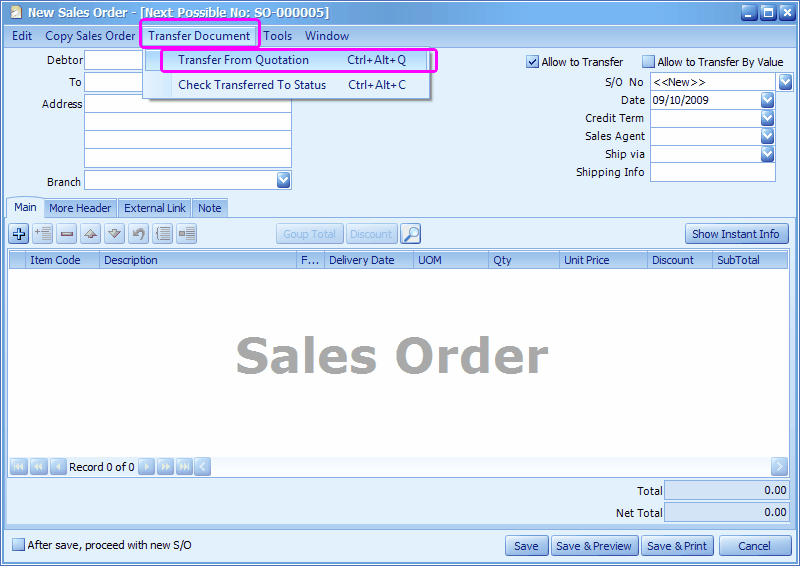
Once the customer agrees to the quotation, transfer the applicable document details into a Sales Order and verify delivery requirements.
Delivery Order
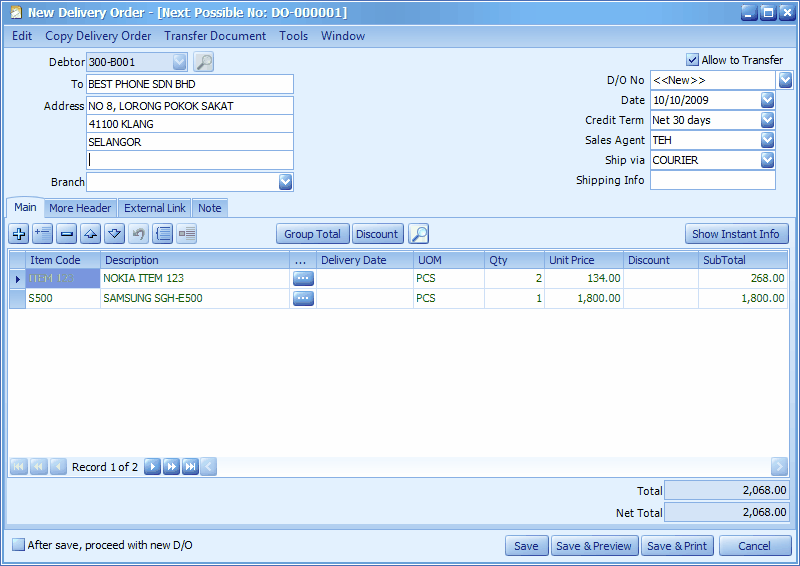
Create a Delivery Order from a Sales Order and confirm quantities before dispatch; actual stock effects depend on configuration.
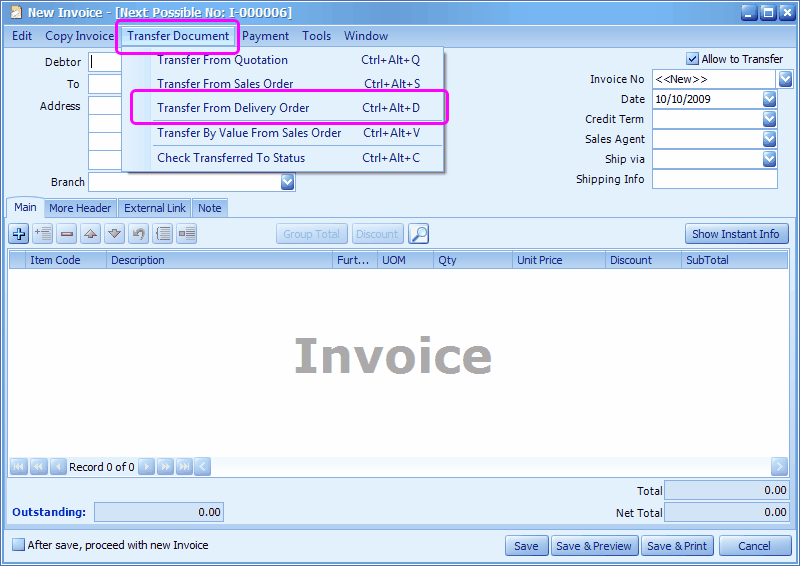
Sales Invoice
Create an invoice using the document transfer function where applicable, verify the billable lines and confirm invoice details.
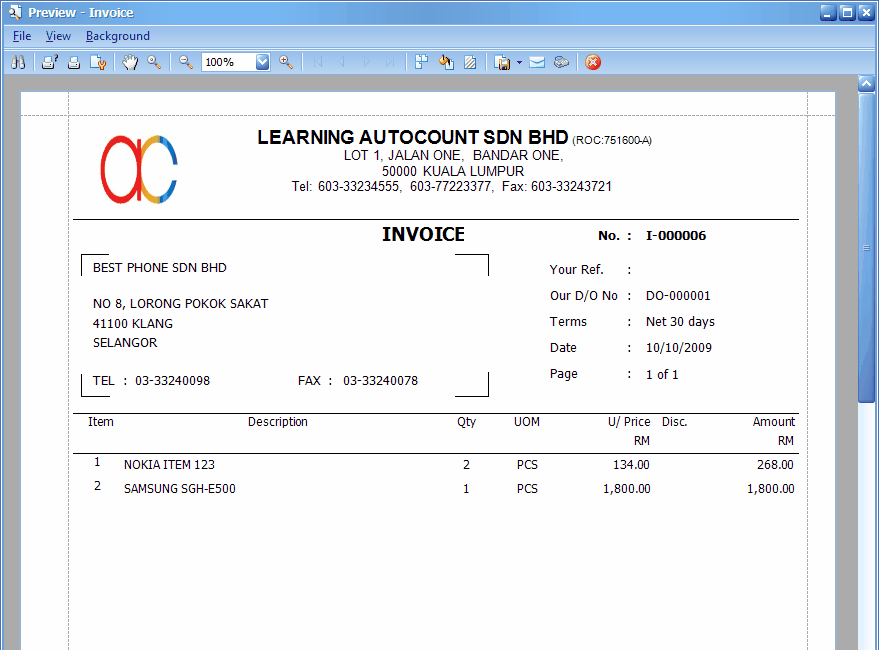
Invoice Print Preview
Review the customer-facing print format before distributing or exporting the document.

Purchase Order
Prepare a supplier purchase order, review items, quantities and cost values, then record the order for procurement follow-up.

Goods Received
Record items physically received from a supplier and compare the receipt with the purchasing documents.

Purchase Invoice
Enter the supplier invoice and match information to goods received where your workflow uses document transfers.
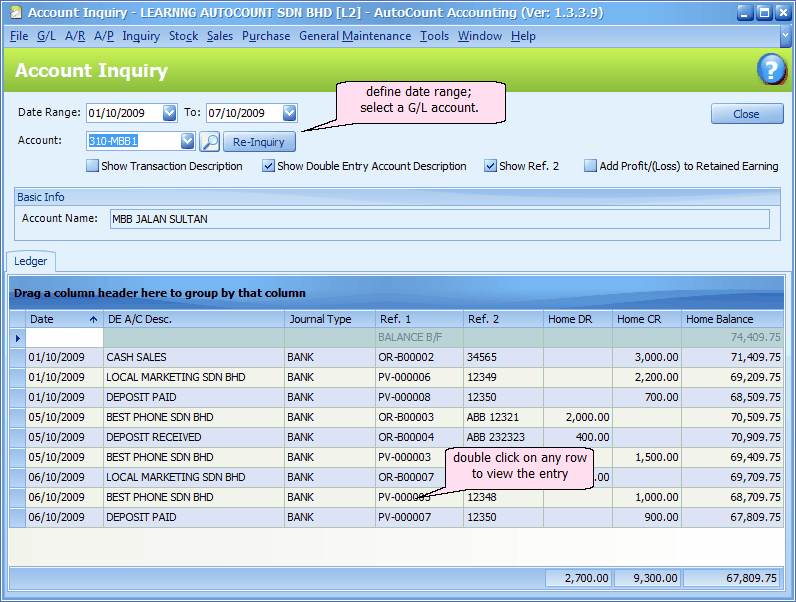
Account Inquiry
Look up entries posted to an account and examine their source transactions before further investigation.
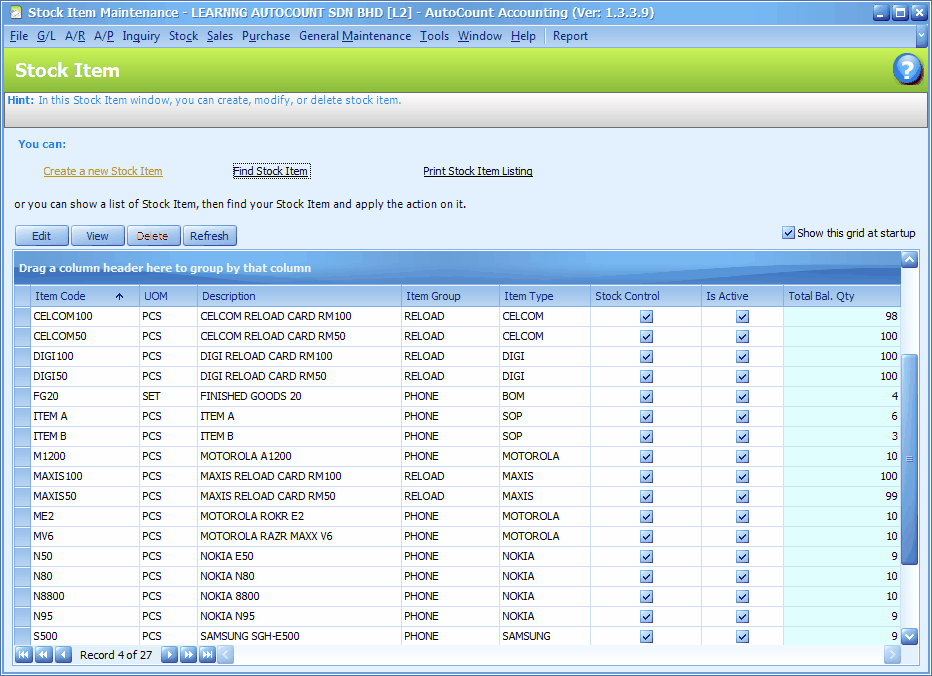
Stock Item Maintenance
Set up item identifiers, descriptions and associated inventory parameters so transactions use consistent product master data.
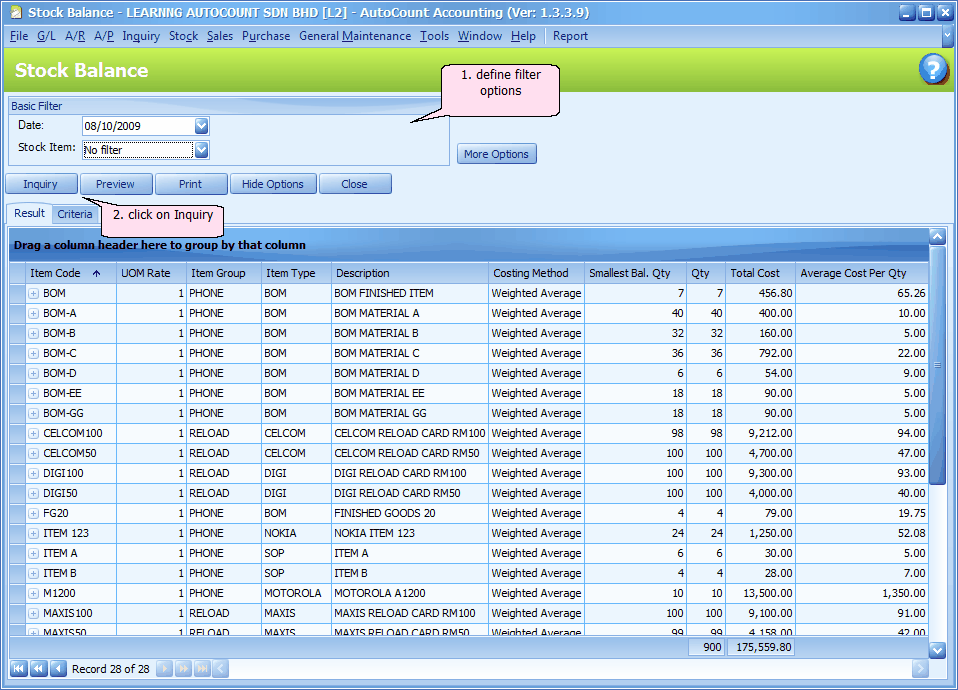
Stock Balance
Review available inventory balances and apply the relevant report filters for location or item selection.

Stock Movement
Trace stock increases and decreases across transactions for reconciliation and investigation.

Stock Transfer
Capture internal transfers between stock locations where the relevant inventory module is enabled.

Reorder Advice
Evaluate stock replenishment suggestions before deciding which items and quantities to purchase.

Stock Adjustment
Record authorized stock corrections after investigating discrepancies between expected and actual balances.
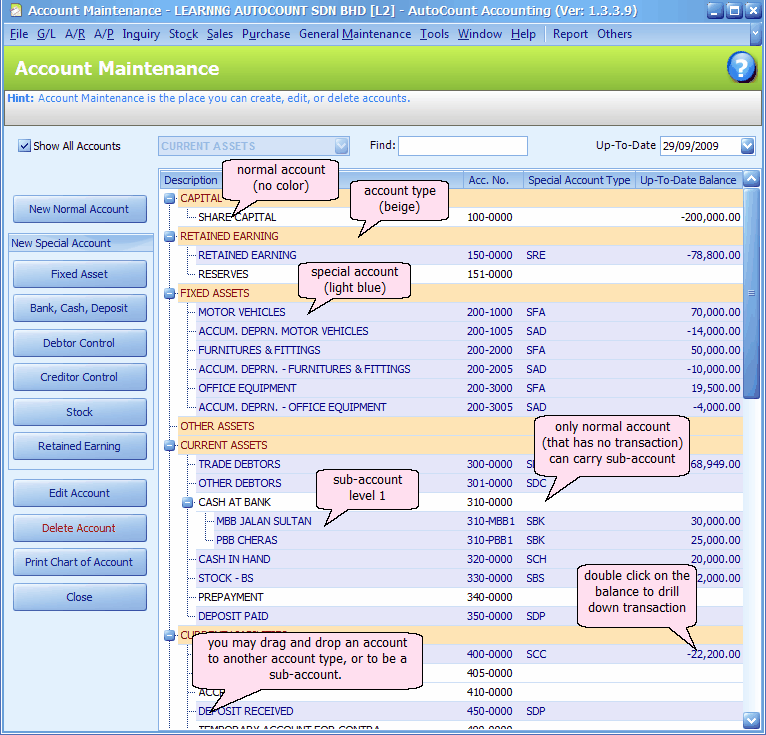
Chart of Accounts
Examine the structure of financial accounts and their classification before posting financial transactions.
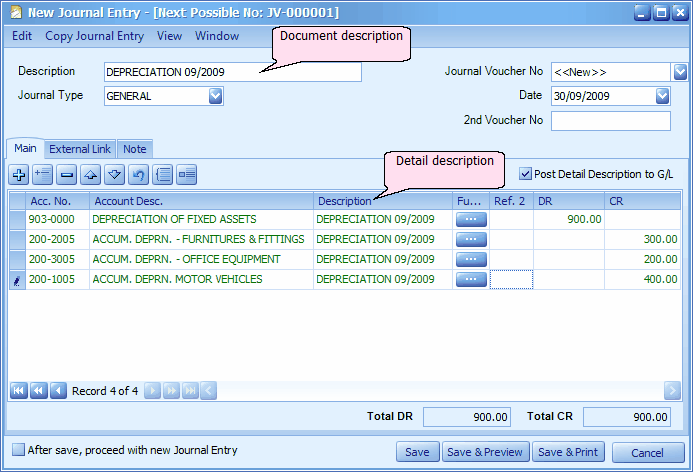
Journal Entry
Record a manually authorized general ledger entry and ensure debits and credits balance.

General Ledger
Inspect posted transactions for an account over a selected period to trace financial movement.
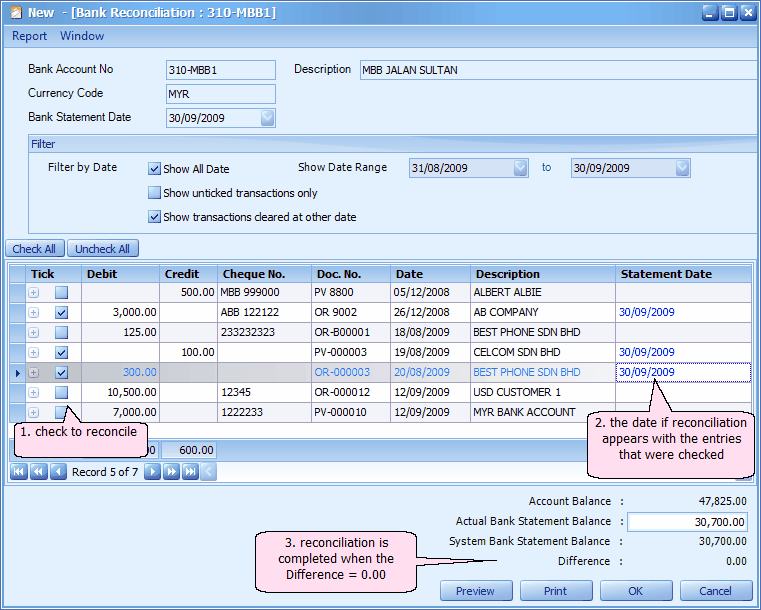
Bank Reconciliation
Compare recorded cash and bank movements to the relevant bank statement for reconciliation.

Debtor Aging Report
Review overdue customer amounts by aging band to prioritize collection follow-up.

Customer Statement
Review customer transaction history, receipts and closing balance for statement generation.

Creditor Aging Report
Identify outstanding amounts due to suppliers according to the aging intervals in the report.

Supplier Payment
Record a payment against the supplier account and allocate it to outstanding documents as required.

Profit & Loss
Review revenue and expense categories for a chosen period and compare business performance.

Balance Sheet
Assess assets, liabilities and equity at a selected date using the configured accounts.

Trial Balance
Compare debit and credit balances before closing or investigating financial posting issues.

Sales Analysis
Filter sales performance by available dimensions to review transactions and trends.
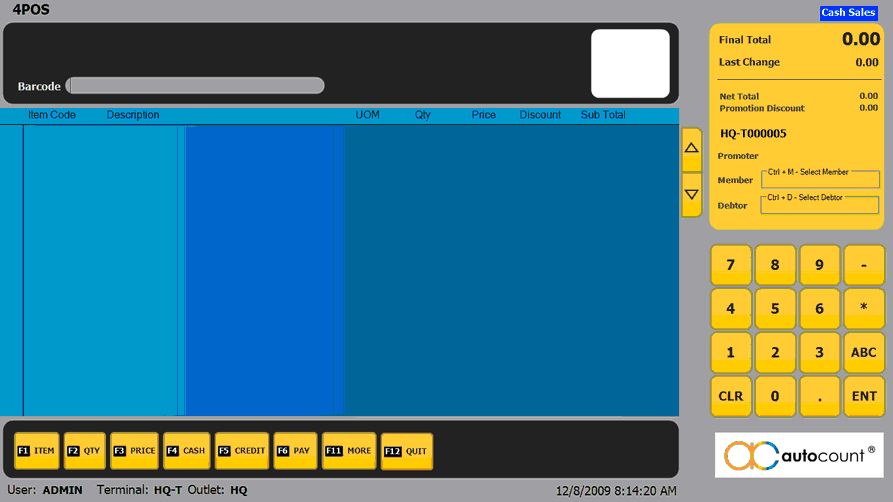
Retail Sales Screen
Begin a retail sale from the POS item-entry interface and confirm the cashier transaction context.
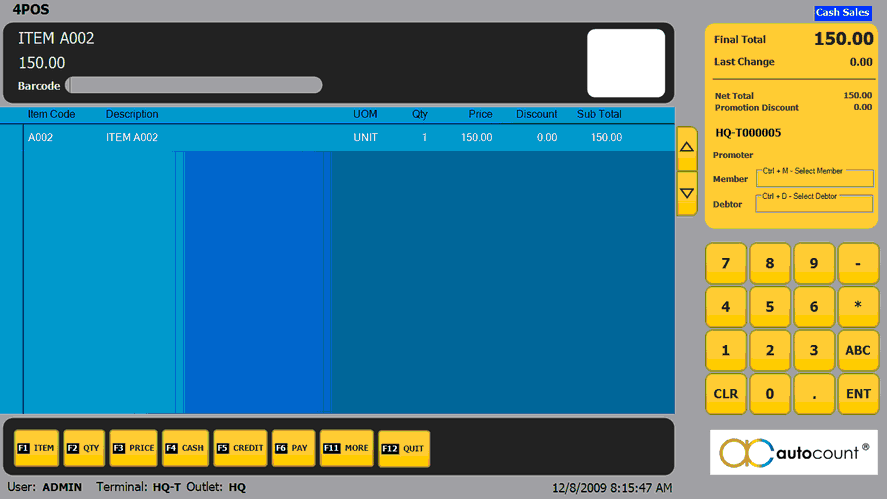
Product Search & Barcode
Add items to the running POS bill and check the recognized product, price and quantity.
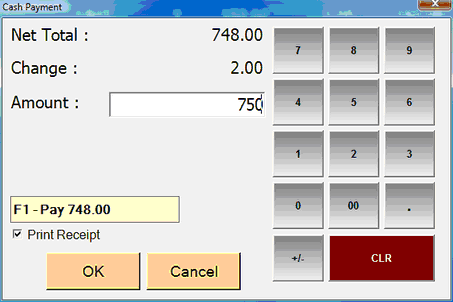
Checkout & Payment
Review the cash tendered and calculated change before completing the transaction.
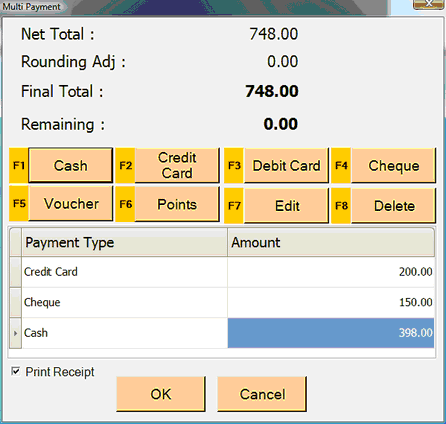
Split Payment
Allocate payment across supported tender methods and check that the remaining balance is cleared.

Daily Sales Report
Filter the back-office POS report to inspect sales activity for the selected outlet and date range.

e-Invoice Preparation
Review the transaction information required before submitting an invoice through AutoCount Cloud Accounting.

MyInvois Submission
Follow the submission action available in the Cloud Accounting interface, subject to configured MyInvois integration.

Validation Status
Inspect the status returned for an e-Invoice, and investigate any rejected submission before retrying.

Validated Invoice
Review the resulting invoice document after successful validation, including the reference or QR information if available.
From first document to final settlement.
Follow two everyday accounting processes using real AutoCount application screens. Choose Sales or Purchasing, then select a stage to see what happens and why it matters.
Prepare a customer quotation
Begin by choosing the customer and adding requested items or services. Enter quantities, unit prices, discounts and relevant terms before saving the quotation.
Once the customer accepts, the quotation details can be carried into a Sales Order, reducing repeated entry.
Confirm the customer order
Create a Sales Order directly or transfer information from an accepted quotation. Review delivery expectations, quantities, prices and customer details before saving.
The sales order formalizes what the customer has agreed to purchase; it does not necessarily mean the goods have been delivered.
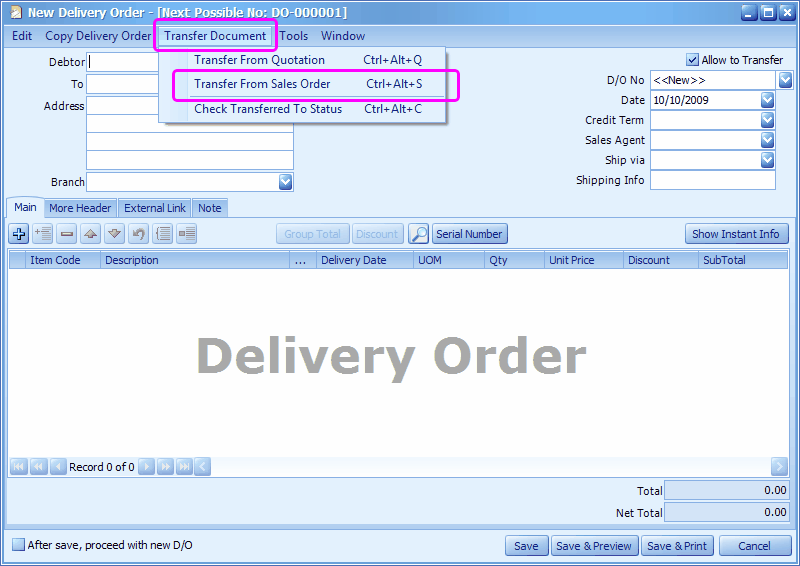
Document goods being delivered
Prepare a Delivery Order for items being supplied, commonly by transferring the Sales Order. Confirm the actual delivered quantity and delivery information.
Depending on configuration, the posted delivery document records stock movement and creates a traceable delivery record.
Issue the customer invoice
Create the Invoice and, where applicable, transfer information from the Delivery Order. Check line items, taxes, payment terms and totals before posting.
The invoice records the amount due from the customer. Not every sales transaction needs a separate delivery order.
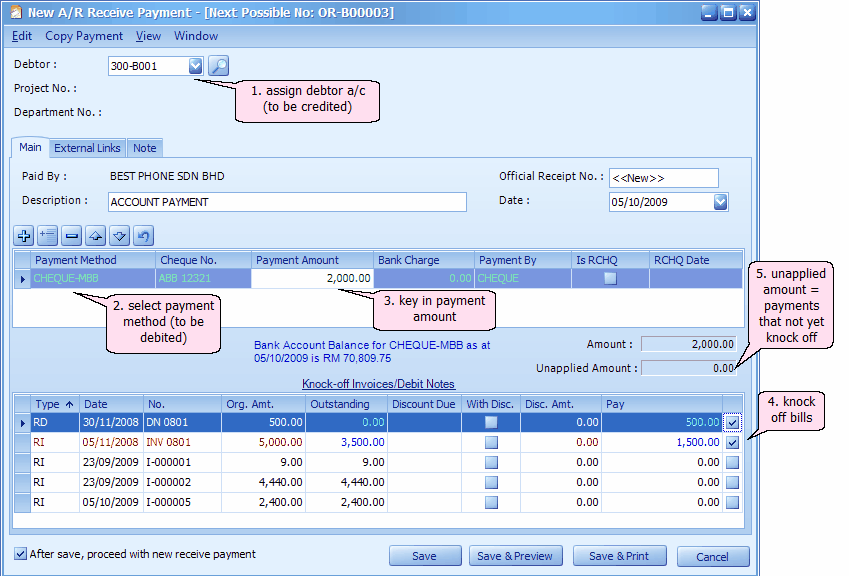
Match the incoming payment
Open A/R Receive Payment, choose the customer and record the amount, date and payment method. Match the receipt against relevant outstanding invoices.
Matching payment to the invoice helps maintain accurate customer balances and outstanding reports.

Request pricing from suppliers
Create a Request Quotation with the products or services required, quantities and relevant supplier information. Use this stage when pricing or supplier terms need to be compared.
This is an optional purchasing step; businesses may proceed directly to a Purchase Order.
Place the supplier order
Prepare a Purchase Order from an approved requirement or supplier quote. Confirm supplier, stock items, quantities, agreed prices and delivery instructions.
A purchase order confirms what has been ordered. It does not itself mean inventory has arrived.
Record incoming stock
Create a Goods Received Note, usually by transferring from the Purchase Order. Verify the physical quantity received and any differences against the original order.
When posted using an inventory-tracked workflow, the receipt can update available stock.
Enter the supplier bill
Enter the Purchase Invoice, preferably by transferring the matching Goods Received Note where one exists. Check billed amounts, tax information and credit terms.
This records the supplier liability and helps avoid duplicate stock movements when documents are transferred correctly.
Settle the outstanding payable
Use A/P Payment to select the supplier, record the amount and payment method, and apply payment against the correct purchase invoice.
This completes the payable cycle and keeps supplier balances up to date.
Request Quotation is optional, and stock/accounting effects depend on the documents used and system setup. Screens may vary according to the AutoCount version and configuration.
Retail Challenges, Smarter Solutions.
See how AutoCount POS helps retailers simplify sales, pricing, orders and multi-outlet operations.
Sales and accounts do not match.
Separate POS and accounting records create extra reconciliation work.
Connect POS sales with accounting.
Supported POS transactions can be posted to AutoCount Accounting 2.0 using configured rules.
- Post eligible sales and payments
- Review daily transaction summaries
- Configure tax and payment posting
Internet issues disrupt checkout.
A lost connection can interrupt sales and delay head-office updates.
Keep selling during outages.
Supported outlet setups allow local transactions and later synchronization.
- Continue eligible offline sales
- Sync when connectivity returns
- Limit checkout interruptions
Discounts are hard to control.
Inconsistent pricing and cashier discounts can affect margins.
Set clearer pricing rules.
Configure supported promotions, minimum prices and user permissions.
- Manage promotional prices
- Limit discounts below set thresholds
- Authorize permitted overrides
Deposits complicate orders.
Partial payments and staged deliveries are difficult to track manually.
Track orders through fulfilment.
Manage supported sales orders, deposits and partial deliveries in one workflow.
- Record orders and delivery details
- Track payments and partial deliveries
- Check outstanding balances
More outlets, less visibility.
Branches may use different settings and produce fragmented reports.
Manage branches centrally.
Supported multi-outlet setups synchronize data and consolidate transactions.
- Coordinate outlet settings
- Sync selected branch information
- Review consolidated sales
From invoice creation to LHDN validation.
Follow a real AutoCount Cloud Accounting e-Invoice journey: prepare an invoice, submit it for validation, check its status, and share the validated document.
Check the details before submission
Create the sales invoice and confirm the customer tax entity, Tax Identification Number (TIN), and product classification information. Accurate source information helps avoid validation errors.
Send the invoice for validation
Review the invoice and complete the required approval. In the documented Cloud Accounting process, approved invoices are automatically submitted to LHDN MyInvois for validation.
Know whether LHDN accepted the invoice
Open the e-Invoice details to inspect the submission status, validation time, unique document identifier, and validation link. Review any rejected documents before correcting and resubmitting.
Give customers a verifiable invoice
Print or export the validated e-Invoice using the applicable Malaysia e-Invoice template. The resulting document can include a QR code linked to its LHDN validation record.
Choose the document type for your transaction.
Requirements and eligibility depend on the transaction and current LHDN guidance.
For a transaction requiring an individual validated e-Invoice, prepare the relevant customer and sales details, submit the invoice and review the validation result.
Example: Invoicing an identified business customer.Combine eligible consumer sales where the applicable LHDN rules allow consolidated submission, rather than treating every receipt as an individual e-Invoice.
Example: Eligible retail transactions for consumers who did not request an individual e-Invoice.In defined self-billing scenarios, the buyer prepares the e-Invoice on behalf of the supplier, using applicable purchasing or payment data.
Example: Certain foreign-supplier or commission-related transactions, subject to LHDN rules.AUTOCOUNT POS / SYSTEM COMPATIBILITY
System requirements.At a glance.
Retail POS 5.x prerequisites and deployment checks.
| Operating system | Windows 10 / 11; Windows Server 2016 cited for server setups | Confirm edition |
|---|---|---|
| Application framework | .NET Framework 4.8 or later | Published reseller requirement |
| Database | SQL Server 2012 Express or later (reseller listing) | Confirm exact supported version |
| Hardware sizing | Depends on user count and deployment topology | Vendor sizing required |
| POS peripherals | Printers, scanners and cash drawers | Confirm model and drivers |
| Accounting link | AutoCount Accounting integration | Confirm license and version |
AutoCount POSFits the Way You Sell.
From neighborhood minimarts to growing retail chains, AutoCount POS supports checkout, inventory tracking and retail operations across different store formats.
One retail platform, different store formats. Explore how AutoCount POS can support everyday sales and stock workflows across convenience, fashion, beauty, electronics and specialty retail.
 01 / 05
Minimarts & Grocery Stores
Handle frequent purchases, barcode checkout and everyday stock movement in busy neighborhood stores.
 02 / 05
Fashion & Apparel Stores
Manage sales across clothing styles, sizes and colors while keeping stock records organized.
 03 / 05
Beauty & Cosmetics Shops
Speed up product checkout and maintain visibility of fast-moving beauty and personal care inventory.
 04 / 05
Electronics & Gadget Shops
Track product sales and stock for devices, accessories and other electronics merchandise.
 05 / 05
Bookshops & Gift Stores
Keep varied product catalogs and day-to-day checkout organized for specialty merchandise.
Retail operations that fit your store.
Whether you run one shop or multiple branches, discuss the AutoCount POS setup, compatible hardware and inventory workflows that match your retail needs.
Greater flexibility for complex operations.
Beyond everyday invoicing and stock transactions, explore the capabilities that help businesses manage multiple entities, specialized inventory, controls and detailed reporting.
Multi-Company
Organize the accounting records of separate business entities and support company-level reporting and administration.
Multi-UOM
Manage products sold or purchased in different units, such as pieces, boxes or cartons, using configured unit conversions.
Project Accounting
Associate relevant transactions with projects to support closer monitoring of project-related income and expenses.
Serial & Batch
Track inventory by serial number or batch where supported, improving identification and traceability of stock items.
Roles & Approval
Set user access privileges and, where configured, require authorization for selected actions and transactions.
Report Designer
Adapt supported report and document layouts to present business information in a more useful format.
Plugins & API
Explore compatible extensions and integration options for connecting supported AutoCount functions with other systems.
Audit Trail
Review available transaction and user activity records to help investigate changes and reinforce operational accountability.
Everyday business controls.
The following Accounting features complement the advanced capabilities above and help with routine business control.
Recurring Transactions
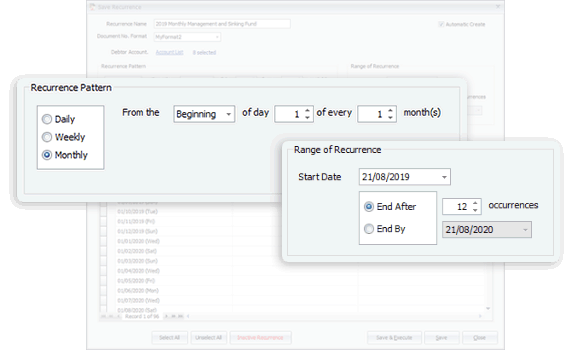
Schedule repetitive accounting entries and choose between automatic generation and reminders.
Less repeated manual entryIntelligent Stock Costing
Recalculate inventory costing when relevant sales or purchase records are changed.
More consistent inventory valuationStock Analysis
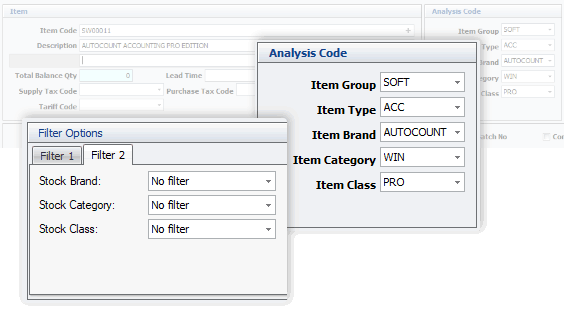
Classify items by group, type, brand, category and class to make inventory review easier.
Clearer stock visibilityCredit Control
Prompt for approval when a sales document would violate a configured credit limit.
Better exception handlingDocument Templates
Create reusable templates for frequently issued business documents and standard inputs.
Faster document preparationUser Access Control
Review and compare access rights across users and groups, including permission export.
More structured access managementAccounting 2.0 feature spotlights.
Understand stock at a glance.
Use AutoCount's inventory grouping and filtering options to examine product categories more clearly. The example opposite is a real Accounting 2.0 interface image from AutoCount.
Make repetitive entries easier.
Use recurring transaction scheduling for routine accounting entries. AutoCount supports automatic generation or reminder-based processing, depending on your setup.
More examples inside Accounting 2.0.
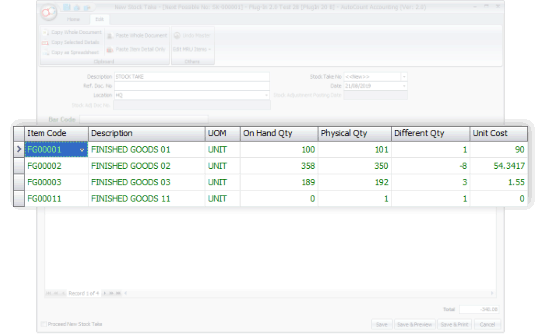
Stock adjustments
Compare recorded and physical quantities during stock-taking, then review differences before creating stock adjustment entries.
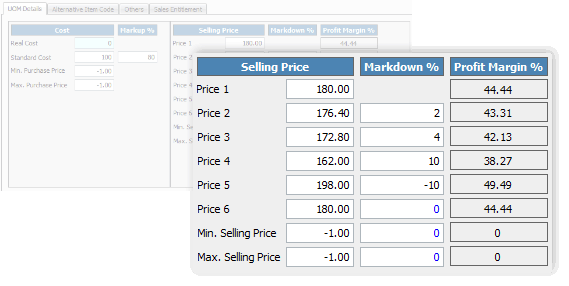
Multiple selling prices
Review up to six selling-price levels and configured margin or markdown settings for different customer pricing arrangements.
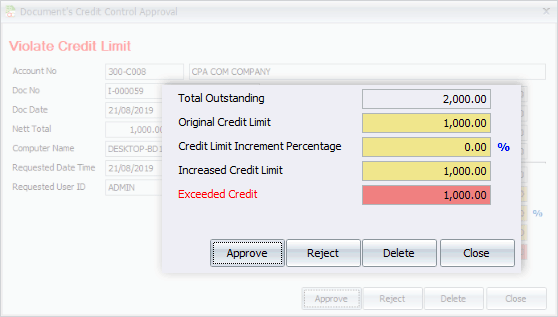
Credit limit approvals
See how a credit-limit exception can trigger an approval prompt before the sales document proceeds.
One POS. Different Ways to Run Your Business.
Explore how the right AutoCount POS configuration can support different ways of working—from a retail counter and restaurant to growing cashier and outlet networks.
Barcode / product
Price & promotion
Receipt / tender
Sales & stock
Run everyday retail with stronger control.
From barcode scanning to payment and stock updates, a connected checkout helps keep daily transactions organised.
Sales transactions feed the reporting and inventory functions available in the configured edition.
Table / takeaway
Order ticket
Meals / modifiers
Payment / receipt
From the dining table to the kitchen.
Illustrate a typical restaurant service journey, including order taking, kitchen communication, bill management and checkout.
F&B-specific features depend on the licensed AutoCount restaurant solution and configured hardware.
Cashier sales
Cashier sales
Users & settings
Review totals
One business. Multiple checkout points.
See how separate cashiers can follow a consistent process while the back office reviews activity across the operation.
Sharing of data between terminals depends on network topology, database and version-specific configuration.
Master settings
Local sales
Local sales
Consolidated view
Keep every outlet connected to the bigger picture.
A simplified view of how headquarters can coordinate configured store data and collect reports from connected branches.
Actual synchronisation timing and offline behaviour depend on product edition and deployment configuration.
Frequently Asked Questions
Answers to common questions about AutoCount Accounting, POS, inventory, Malaysia e-Invoicing and choosing the right solution for your business.
What is AutoCount, and which product should I choose?
AutoCount offers accounting and point-of-sale solutions for different business needs. AutoCount Accounting focuses on invoicing, purchasing, stock records and financial reporting, while AutoCount POS supports checkout operations. Cloud-based products may suit businesses that need web access. Choose based on your daily workflow and the modules you need.
Can AutoCount manage quotations, invoices and payments?
AutoCount Accounting supports connected sales documentation, including quotations, sales orders, delivery orders, invoices and receipt entries where enabled. This helps businesses keep records aligned as a sale progresses. Available approval or automation functions depend on the product and configuration.
How does AutoCount manage inventory and purchasing?
AutoCount Accounting can record purchase orders, goods received, purchase invoices and supplier payments. Inventory features help businesses track items, stock movement and valuation. More advanced controls such as batches, serial numbers or additional locations may require particular modules.
Does AutoCount support Malaysia e-Invoicing?
Supported AutoCount solutions can connect with Malaysia’s LHDN MyInvois e-Invoice process through the applicable AutoCount e-Invoice services. Businesses may need to prepare buyer and tax information, submit documents for validation and check the response. Standard, consolidated and self-billed scenarios are subject to current LHDN requirements.
Can AutoCount support multiple companies or branches?
AutoCount offers multi-company and multi-location capabilities in supported products and configurations. Businesses may manage separate companies, retail outlets or stock locations, but exactly how data is consolidated and shared depends on the relevant product, modules and deployment.
How do I get started with AutoCount and obtain support?
Start by identifying your transaction types, number of users, branches and reporting needs. A product consultant can then recommend an appropriate Accounting, POS or Cloud solution. Implementation typically includes configuration, data preparation, user training and checking key workflows before go-live.