

Sell Smarter. Grow Faster.
Simplify everyday retail operations with iPOS — bringing sales, inventory, purchasing and reporting into a more efficient business workflow.
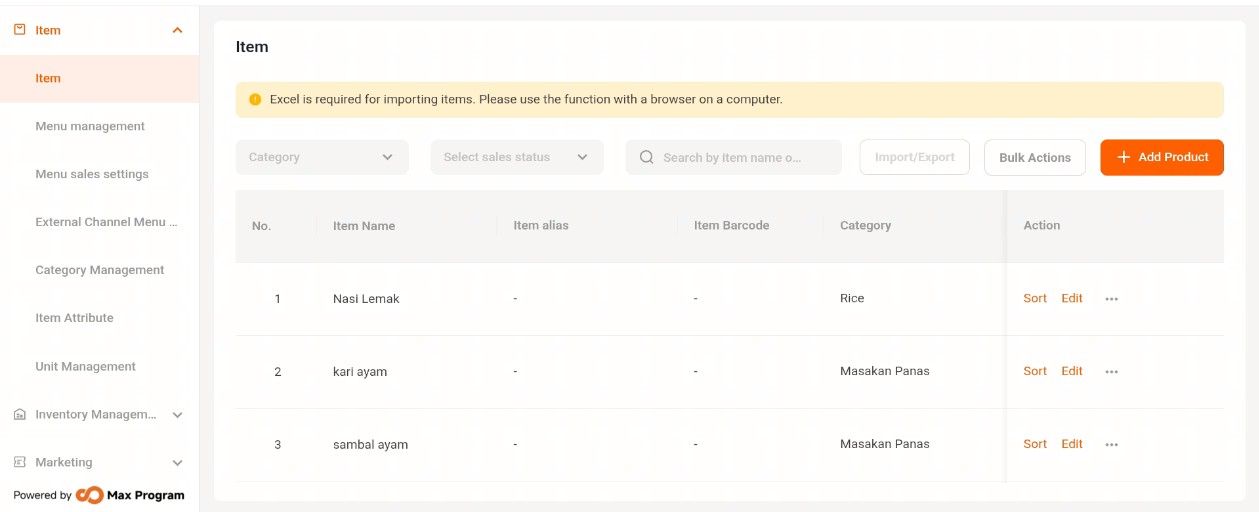
Sell Smarter Manage Better
Discover how iPOS supports day-to-day retail operations, from point-of-sale transactions and product management to stock monitoring and sales reporting. Explore the key workflows involved in running a retail business and see how a connected POS system can make routine operations easier to manage.
The iPOS Retail Ecosystem
One Retail Ecosystem. Connected Business Operations.
Explore how iPOS brings together retail checkout, stock management, customer relationships and performance reporting. Select a workflow in the diagram to discover its role in day-to-day retail operations.
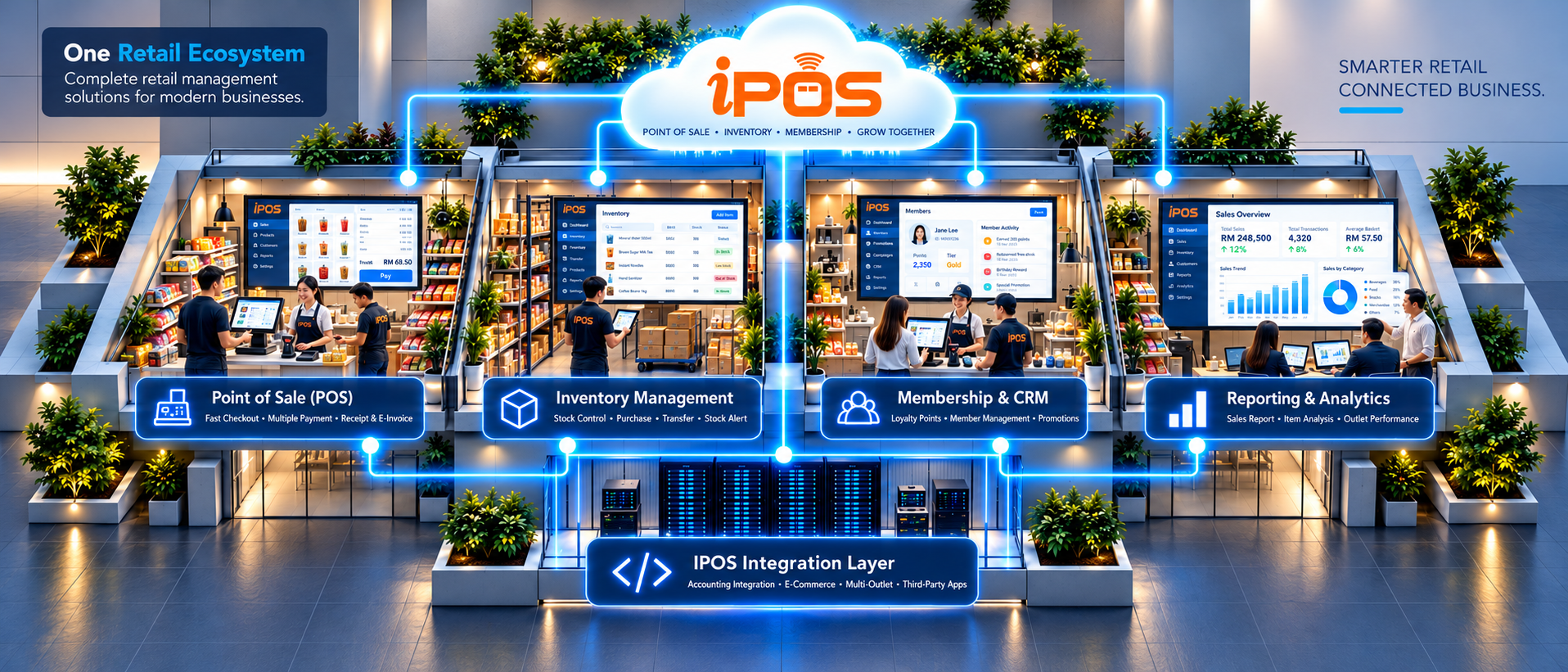
Select a highlighted panel in the illustration or choose a workflow below.
iPOS Retail Workflows / 01
Point of Sale (POS)
Support front-counter transactions with a focused checkout workflow. The ecosystem illustration highlights fast checkout, multiple payment options, receipts and e-Invoice-related processes.
- Checkout transactions
- Multiple payment methods
- Receipts and e-Invoice workflow
iPOS Retail Workflows / 02
Inventory Management
Keep product stock and replenishment activities organised across retail operations. The diagram highlights purchasing, stock transfers and inventory alerts.
- Stock monitoring and control
- Purchasing and replenishment
- Stock transfers and alerts
iPOS Retail Workflows / 03
Membership & CRM
Manage customer relationships through membership records, loyalty programmes and promotional activities that help support repeat purchases.
- Member management
- Loyalty points
- Customer promotions
iPOS Retail Workflows / 04
Reporting & Analytics
Review business performance through sales information and operational reports. The illustration features sales reporting, item analysis and outlet performance.
- Sales performance reports
- Item-level analysis
- Outlet performance overview
iPOS Retail Workflows / 05
iPOS Integration Layer
Bring relevant retail workflows together through the integration options represented in the diagram, including accounting, e-commerce, multi-outlet operations and third-party applications.
- Accounting integration
- E-commerce connections
- Multi-outlet and third-party options
Inside iPOS Software
Explore Real iPOS Screens Behind Everyday Retail Workflows.
Browse 12 distinct interface images covering sales, inventory, membership, reports and administration.

Retail Sales Screen
An actual iPOS checkout screen with product selection, quantities and transaction totals.

Payment & Settlement
Review settlement options and complete a sale from the payment dialog.

Customer-Facing Display
A separate customer-facing transaction display shows purchased products and total due.

Invoice Management
Browse invoice records and their document or payment status.

Product Maintenance
Manage product identifiers, descriptions, unit information and sale prices.

Stock Balance Report
Inspect quantities and valuation using a stock balance report.

Barcode Label Output
Preview printable barcode labels for products.

Member Records
Maintain member information and view the membership list.

Business Dashboard
View sales summaries, stock counts and ranked business results.

Sales Transaction Report
Filter sold items and examine transaction totals for a selected period.

Profit/Loss Transaction Report
Inspect profit and loss entries associated with sold products.

User Management
View users, their status and role assignment within the application.
From first scan to smarter stock decisions.
Explore two practical iPOS retail workflows: processing a customer sale and managing product replenishment. Select a workflow and follow each stage to understand how retail operations connect.
Search and add products
Search products by name or barcode, then add items to the current sale. Verify selected products and prices in the transaction table.
Accurate item selection reduces pricing errors and creates a clear record of the sale.
Check the customer-facing order
Review the customer display showing each selected item, quantity and transaction total before completing payment.
The customer-facing display helps confirm the selected items and total before the cashier finalizes payment.
Complete the payment
Use the payment dialog to select cash, transfer or card, confirm the received amount, and complete the transaction.
A completed payment provides the cashier with a clear settlement record.
Review recorded invoices
Open the invoice management screen to locate transaction documents and check their status. This image shows invoice records, not a printed receipt.
Invoice records provide an administrative view of transaction documents. Receipt printing is a separate action during checkout.
Review completed sales
Inspect the sales report and its transaction lines for the selected date range to monitor retail activity after checkout.
Sales visibility supports cashier reconciliation and operational decisions.
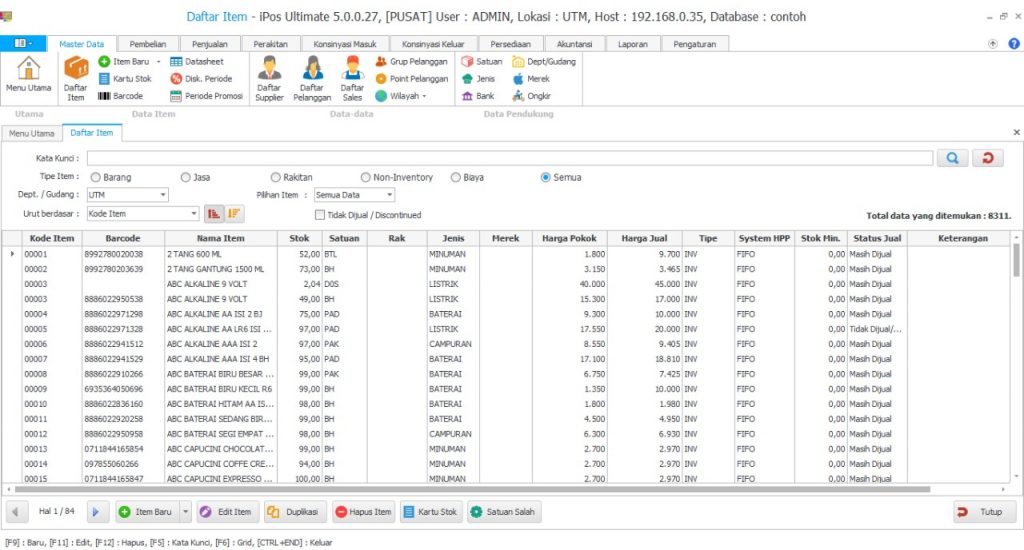
Maintain product records
Set up or review the product catalog, including item names, stock keeping units, prices and categories as available in the application.
Consistent product records improve checkout accuracy and inventory tracking.

Identify low-stock items
Review the stock balance and movement information to identify products that may need replenishment.
Stock visibility helps reduce the risk of running out of popular products.
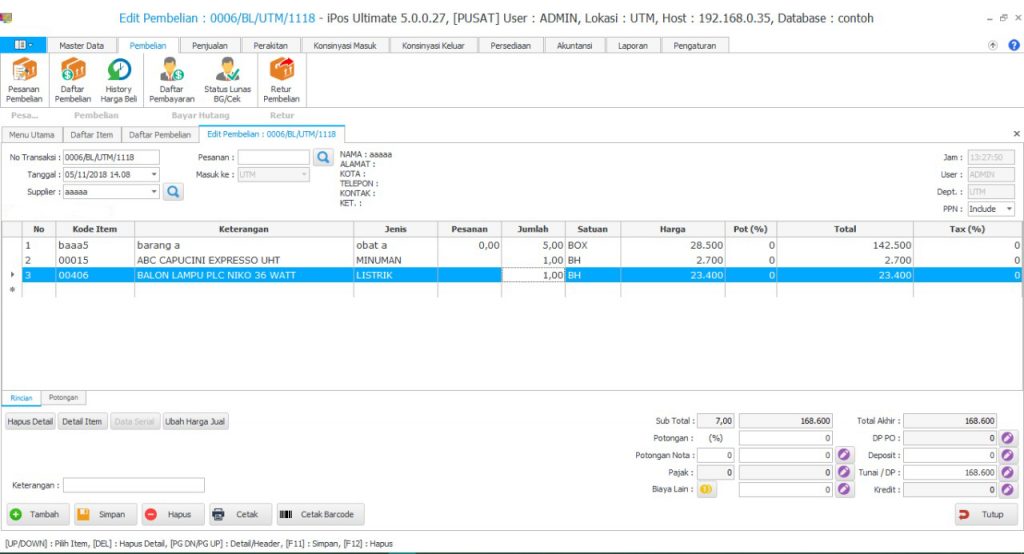
Plan stock replenishment
Prepare or review a stock replenishment request based on sales demand, current stock and supplier lead times.
Replenishment planning helps balance availability and overstock risk.
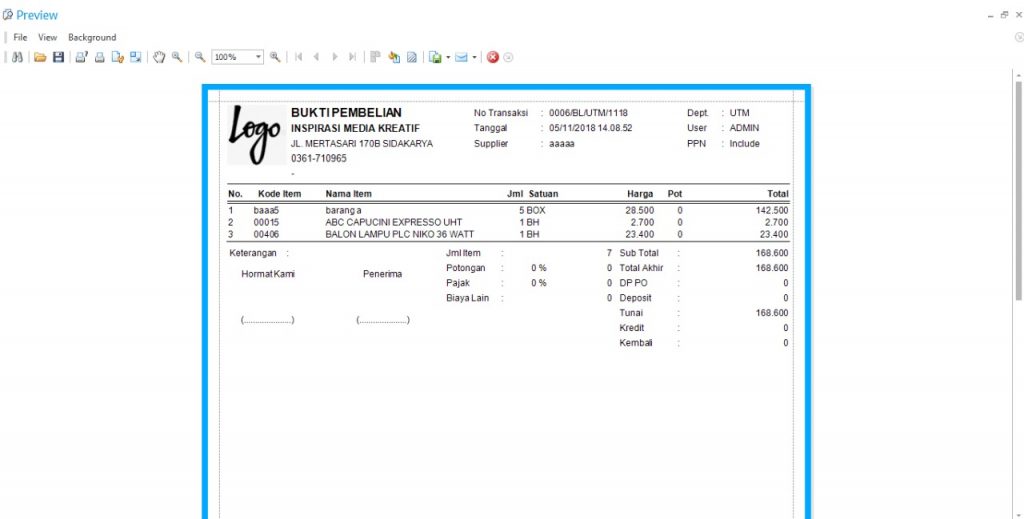
Record incoming quantities
When new goods arrive, compare physical quantities with supplier documents and record receipts through the available inventory workflow.
Accurate receiving keeps stock counts aligned with physical inventory.
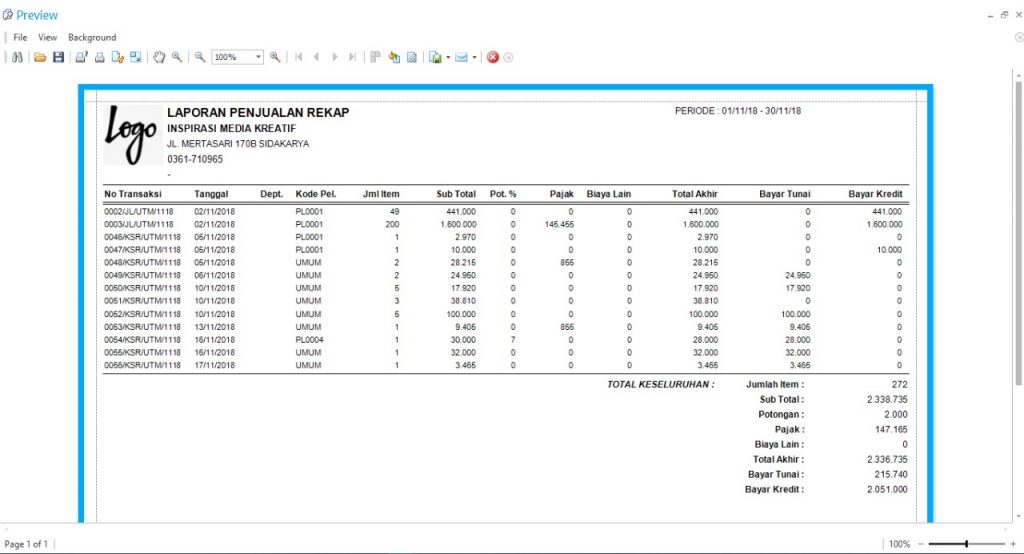
Review operational activity
Use inventory and customer information to understand purchasing patterns, popular items and stock decisions where these reports are available.
Operational review supports better replenishment and customer service.
Retail Challenges, Smarter Solutions.
See how iPOS helps retailers simplify checkout, stock control, customer loyalty and sales management.
Long queues slow down sales.
Manual item entry and payment delays can make busy checkout periods difficult.
Make checkout easier.
Use iPOS to manage items, transaction totals and supported payments at the counter.
- Search or scan products
- Review prices and discounts
- Complete sales and receipts
Stock records are unclear.
Missing or inaccurate inventory information makes replenishment harder.
Keep stock in view.
Track product information and review stock activity using supported inventory functions.
- Maintain product records
- Monitor stock balances
- Plan stock replenishment
Repeat customers go unnoticed.
Unorganized member details make loyalty benefits difficult to manage.
Manage customer membership.
Keep member information together and apply eligible rewards where configured.
- Maintain member profiles
- Check loyalty benefits
- Review customer purchases
Sales performance is hard to track.
Scattered transaction records make daily business reviews time-consuming.
Understand your sales.
Use iPOS reports to review sales activity and available performance breakdowns.
- Review daily sales
- Analyze item performance
- Check transaction history
Branches are hard to coordinate.
Managing separate outlet records reduces visibility across stores.
Connect retail operations.
Use supported multi-outlet functions and integrations to organize branch information.
- Review outlet activity
- Coordinate product information
- Explore supported integrations
From retail transactions to MyInvois validation.
Understand how retail sales data is prepared for Malaysia’s LHDN e-Invoice process, from buyer details and submission to validation and sharing. Screens below show the MyInvois portal as a reference, not the iPOS application.
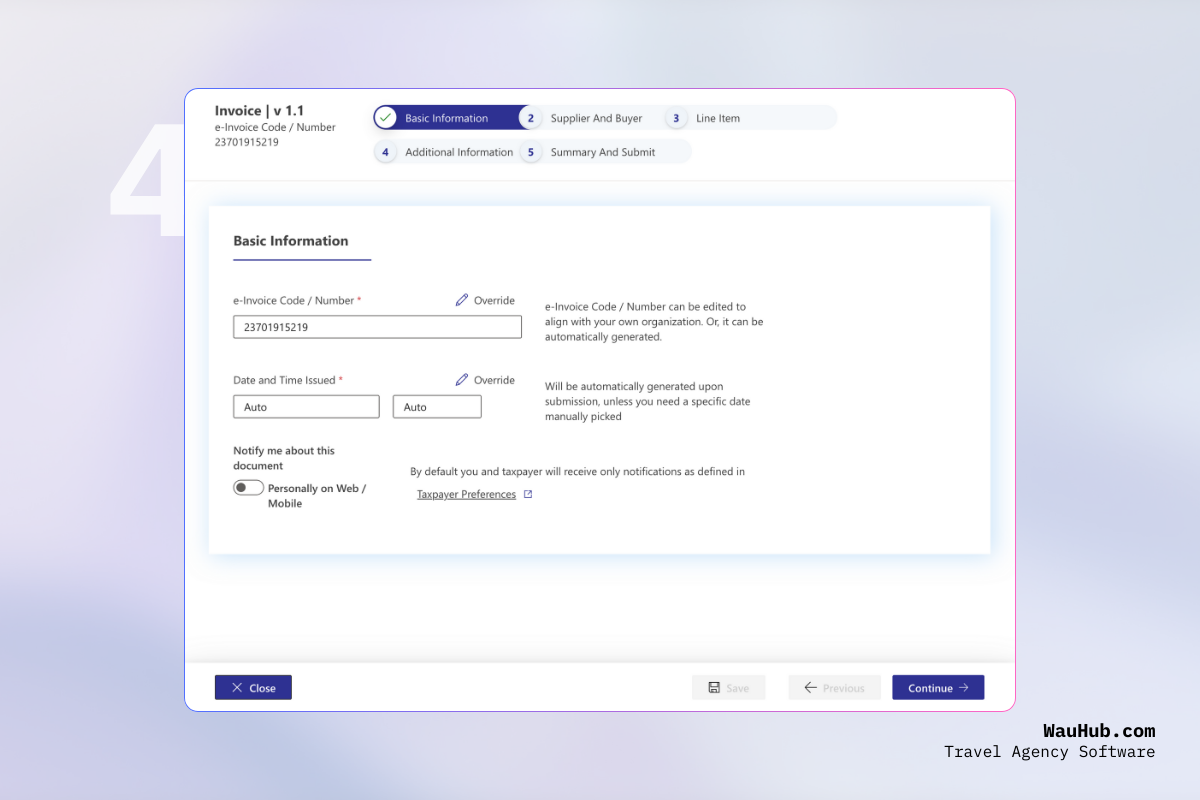
Prepare retail e-Invoice information
Review the completed sale, buyer identity where required, item descriptions, quantities, tax treatment and totals. A retail receipt alone is not automatically an LHDN-validated e-Invoice.
Illustrative MyInvois portal reference — not a native iPOS screen.
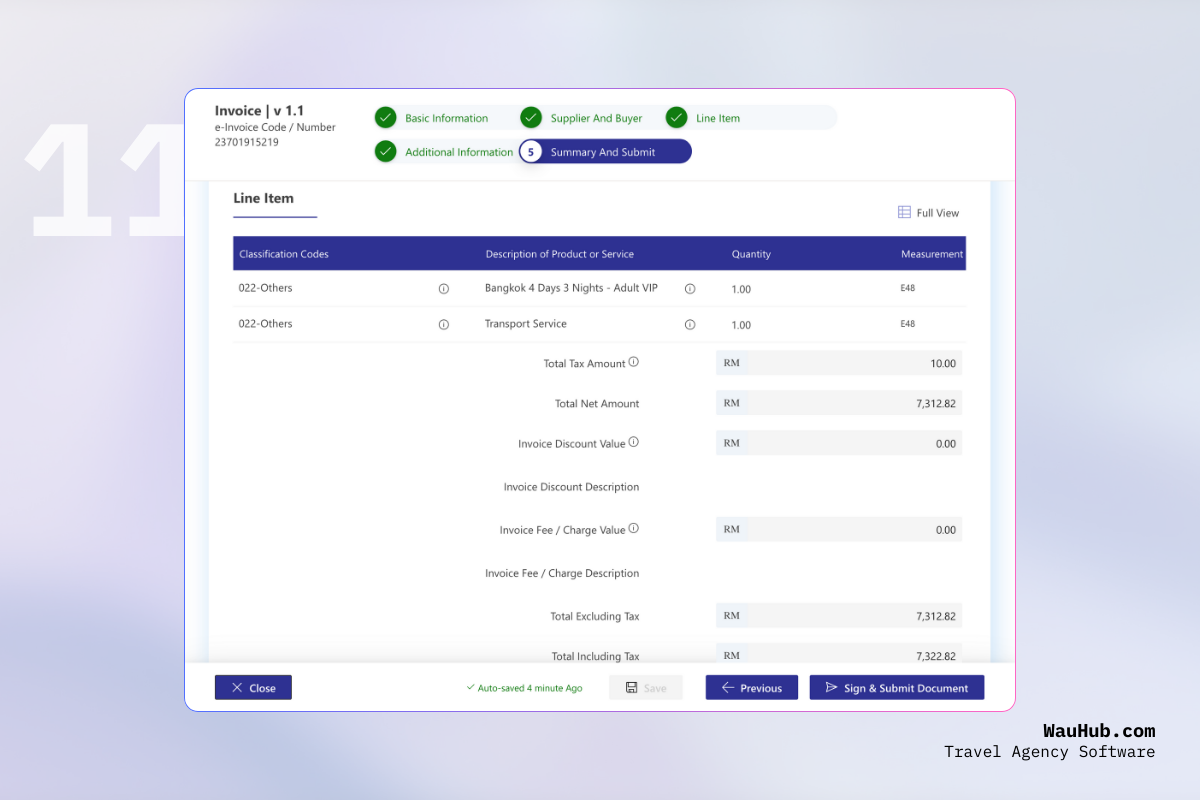
Submit an eligible document to MyInvois
Create and submit the e-Invoice through the official MyInvois Portal or through an appropriately configured, supported API integration. Do not assume submission happens automatically inside iPOS.
Illustrative MyInvois portal reference — not a native iPOS screen.

Review the validation result
Check whether LHDN has accepted the document. If it is invalid, correct the reported issue and follow the applicable resubmission process; submission alone does not establish validation.
Illustrative MyInvois portal reference — not a native iPOS screen.

Provide the validated e-Invoice
Once validated, share the appropriate e-Invoice information with the buyer. A validated document can include a verification link or QR code, depending on the chosen output.
Illustrative MyInvois portal reference — not a native iPOS screen.
Choose the right treatment for each retail transaction.
Whether individual or consolidated e-Invoices apply depends on the transaction and the latest LHDN rules.
For a customer transaction requiring an individual e-Invoice, prepare the necessary buyer and transaction information and follow the MyInvois validation process.
Example: a buyer requests an e-Invoice for an eligible purchase.Eligible retail transactions may be included in a consolidated e-Invoice when the prevailing LHDN requirements and any transitional arrangements allow.
Example: qualifying receipts grouped for consolidated reporting.Compare retail sales totals with documents successfully submitted and validated, and investigate missing, duplicate or invalid records.
Example: review daily POS totals against e-Invoice statuses.iPOS SOFTWARE / SYSTEM REQUIREMENTS
System requirements. At a glance.
Published hardware and system specifications for iPOS retail software, including platform, memory, storage and POS peripherals.
| Operating System | 64-bit Windows, Linux or macOS. | Supported platforms |
|---|---|---|
| System Memory | 4 GB RAM minimum; 8 GB RAM recommended. | Minimum / Recommended |
| Storage | 20 GB available disk space. | Published requirement |
| Database | SQL-based relational database. | Database type |
| Barcode Scanner | Optional barcode scanner for faster product lookup. | Optional peripheral |
| Receipt Printer | Receipt printer for customer transaction documents. | Listed hardware |
| Cash Drawer | Hardware integration for compatible cash drawers. | Supported integration |
iPOSFits the Way You Sell.
From busy grocery counters to specialist retail shops, iPOS helps businesses organise sales, track products and manage everyday store operations.
One retail solution, different shop environments. Explore practical iPOS use cases across groceries, hardware, pharmacies, bakeries and fashion outlets. Features depend on your chosen configuration.
 01 / 05
Supermarkets & Mini Markets
Keep busy checkout lines moving while organising daily product sales and stock records across food and household essentials.
 02 / 05
Hardware & DIY Shops
Organise fast-moving tools, fittings and building supplies with clearer item lookup, sales records and stock tracking.
 03 / 05
Pharmacies & Health Shops
Keep healthcare, wellness and personal-care products organised while supporting straightforward counter transactions.
 04 / 05
Bakeries & Pastry Shops
Handle quick counter sales of breads, pastries and takeaway treats while keeping product records organised.
 05 / 05
Clothing & Accessories Shops
Manage daily sales for apparel, footwear and accessories while keeping your merchandise catalogue easier to follow.
A practical POS setup for your shop.
Whether you operate a grocery counter, a specialty store or several locations, ask KMS about the suitable iPOS edition, supported hardware and available inventory functions.
Smarter tools for modern retail operations.
Explore practical iPOS functions for checkout, product and stock management, customer membership, sales reporting and day-to-day retail control.
Point of Sale
Find products, adjust quantities and complete counter transactions from a dedicated sales screen.
Products & Barcodes
Maintain item names, selling prices and product codes so cashiers can find the correct item.
Stock Management
Review stock balances and product availability to support replenishment decisions.
Membership & Customers
Maintain customer and membership records for repeat purchases and retail engagement.
Payment Processing
Review sale totals and record available payment methods during checkout.
Sales & Transaction Reports
Review completed sales and transaction history to understand daily retail activity.
Dashboard & Analytics
Use sales summaries and performance views to identify trends and busy periods.
Staff & Access Management
Organise staff accounts and relevant access settings for controlled retail operations.
Everyday retail controls.
Essential functions that support accurate checkout, organised stock and a clearer view of store performance.
Fast Checkout
Search for items, check basket totals and complete sales with less manual calculation.
Simpler counter transactionsProduct Pricing
Maintain selling prices alongside product records for more consistent checkout.
Clearer pricing informationStock Visibility
Check inventory quantities and identify products that may need replenishing.
More informed purchasingCustomer Membership
Access available member details and support repeat-customer interactions.
Better customer continuitySales Records
Review invoices, transactions and sales summaries to follow up on daily trading.
Easier sales reviewStaff Accounts
Keep staff access organised for day-to-day retail tasks.
More structured accessiPOS interface spotlights.
Retail checkout.
Handle day-to-day sales in the POS interface. Select items, check quantities and review the transaction total before payment.
Inventory overview.
Review available product quantities and follow stock balances through the inventory screen.
More examples inside iPOS.
Member records
View customer details and membership information to support regular shoppers.
Sales dashboard
View important sales indicators together to support faster store-level decisions.
Transaction history
Review recorded transactions and invoice activity for routine sales follow-up.
iPOS Software. Built Around Retail Operations.
Explore how iPOS supports everyday checkout, inventory management, cashier operations and growing retail outlets through connected workflows.
Barcode / search
Prices / quantities
Cash / supported tender
Receipt / sales record
Keep retail checkout moving.
iPOS brings product selection, item pricing, payments and sales records into an everyday cashier workflow.
Payment methods, receipt printing and transaction options vary by installed version and connected peripherals.
SKU / item details
Stock balance
Incoming / outgoing
Inventory reports
Know what is on your shelves.
Use iPOS product and stock records to support daily replenishment and keep merchandise information organized.
Stock adjustments, purchasing processes and automated updates depend on the selected iPOS edition.
Cashier access
Register session
Customer payments
Cashier activity
Manage daily cashier activity.
Organize sales responsibilities and review transactions across checkout staff using available iPOS user and reporting tools.
Multiple simultaneous terminals and shared live data require verification against your deployment and license.
Outlet records
Pricing / inventory
Branch transactions
Sales by outlet
Make better decisions across outlets.
For businesses with more than one location, structured outlet records and sales reporting help managers understand daily performance.
Multi-outlet synchronization and consolidated reporting are configuration-dependent; confirm support with your supplier.
Frequently Asked Questions
Answers to common questions about iPOS checkout, inventory, membership, sales reporting and getting started with your retail setup.
What is iPOS Software and who is it for?
iPOS is point-of-sale software designed to support everyday retail operations. It brings sales transactions, product information and stock monitoring into a more organised workflow for businesses such as minimarkets, boutiques and specialist retailers.
How does iPOS handle retail checkout and payments?
iPOS helps cashiers select or scan products, review the sales total and record a completed transaction. The payment methods, discount options and receipt functions available at checkout depend on the setup used.
Can iPOS help manage products and inventory?
iPOS retail workflows can help staff maintain product records, check stock availability and review inventory-related activity. Accurate product and stock data make daily replenishment decisions easier.
Does iPOS support membership and customer management?
Customer and membership functions can help retailers maintain customer records and recognise returning shoppers. Membership pricing, rewards or promotions should be confirmed against the particular iPOS package.
What reports can I review in iPOS?
iPOS reporting tools can help businesses review completed sales, transaction history and sales trends. The precise dashboards, filters and export options vary by edition.
How do I set up iPOS Software and get support?
Start by identifying your product catalogue, number of counters, outlets, payment methods and hardware needs. Your implementation provider can then confirm compatibility, configure the system and guide users through checkout and reporting before launch.