
Serve Smarter.
Connect orders, payments, kitchen operations and insights in one restaurant platform.
Serve Smarter. Operate Better.
Simplify restaurant operations with FeedMe POS. Manage orders, table service, payments and inventory through one connected platform. Improve daily workflows, monitor sales performance and deliver a more efficient dining experience for your customers.
Every part of service.One FeedMe ecosystem.
Explore how FeedMe brings ordering, kitchen coordination, restaurant management and connected services into one streamlined F&B operating experience.
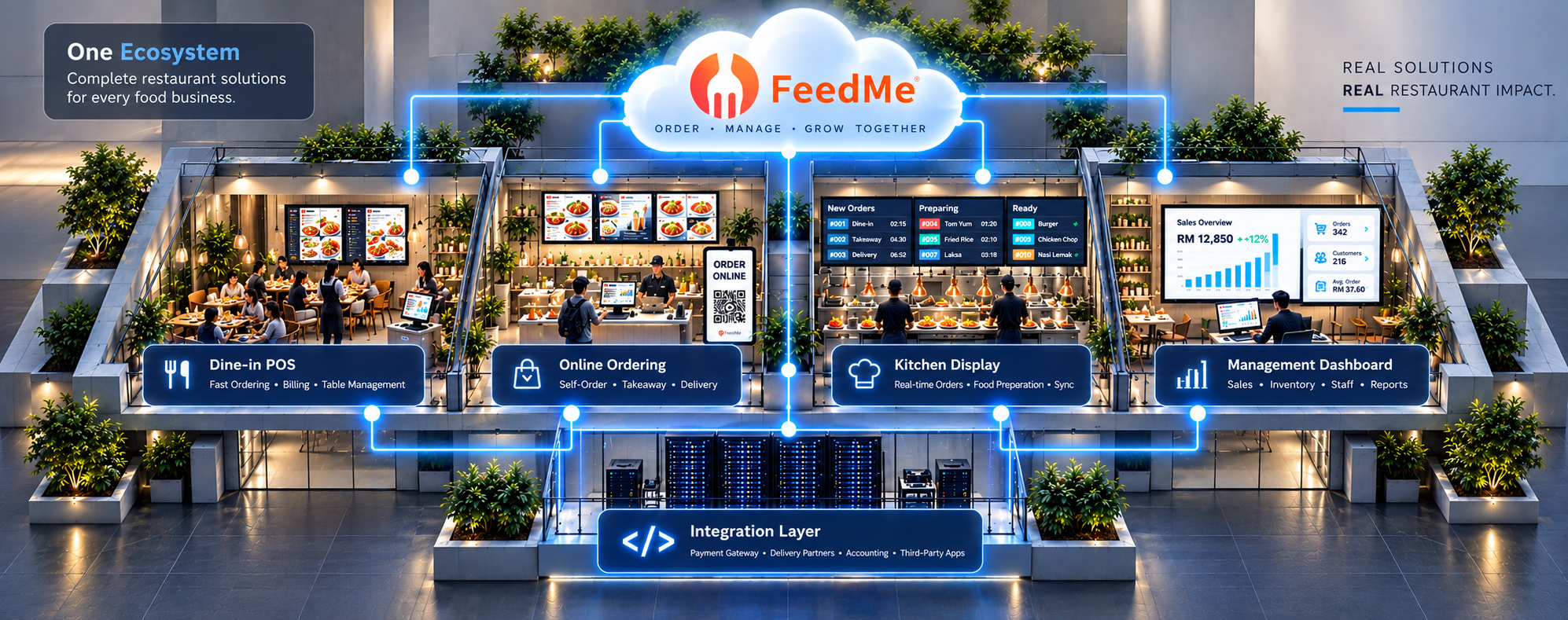
Select a highlighted area in the illustration or use the choices below.
FeedMe Ecosystem
FeedMe brings key restaurant workflows together across POS, digital ordering, kitchen operations, reporting and integrations.
Dine-in POS & Tables
Manage restaurant service with point-of-sale ordering, menus and table management designed around everyday F&B operations.
QR Ordering
Allow customers to access a digital menu and place orders from their phones through supported QR ordering workflows.
Kitchen Display
Use kitchen display workflows to communicate and track incoming orders between service teams and the kitchen.
Reporting & Management
Review restaurant sales and operating information through management reporting tools, with inventory and outlet functions according to configuration.
Payments & Integrations
Connect supported payment, delivery and accounting services to help reduce duplicated work between restaurant systems.
Explore the FeedMe Software Behind Restaurant Operations.
Browse real FeedMe software screenshots across five operational areas. Choose a category on the left, select a feature, and discover the screens used for day-to-day restaurant management.

Restaurant Operations Overview
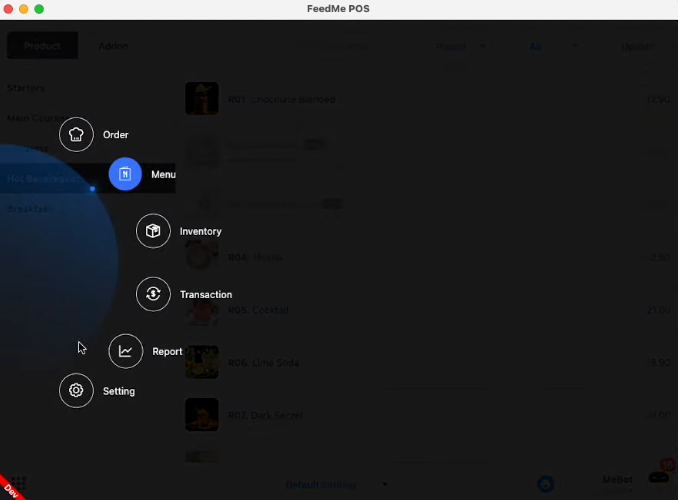
The back-office operations screen provides entry points for restaurant setup, menu, inventory, reports and other tools.

Table List
Review the table records maintained for a restaurant floor.

Floor Plan Editor
Arrange and position tables visually using the floor-plan layout canvas.

Table Display Settings
Access the table layout settings dialog to adjust the display configuration.

Menu Variant Setup
View how a menu product can be assigned variants, such as different serving options.

Variant Pricing Options
Inspect variant selection and pricing details within the product editor.

Modifier Groups
Open the Group/Modifier interface to organise add-ons and product customisations.

Modifier Rules
Configure a product modifier group and its applicable selections.

Product Group Overview
Review the configured groups in the Menu section before assigning them to items.

Menu Categories
Manage menu categories used to group products for ordering.

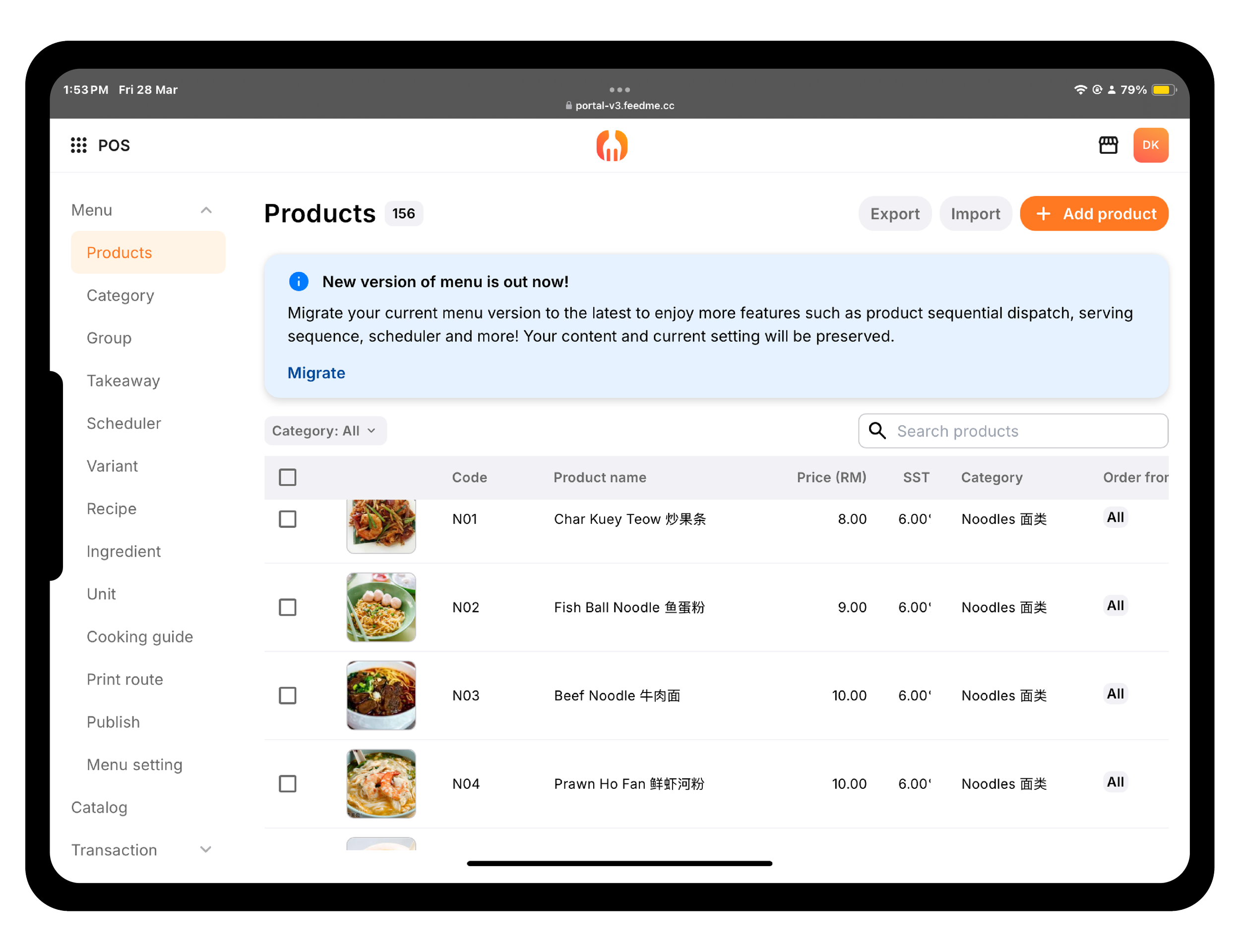
Menu Products
Open a menu product and check associated options and categories.

Publish Menu Changes
See the menu publishing area used to make edits available to relevant ordering channels.

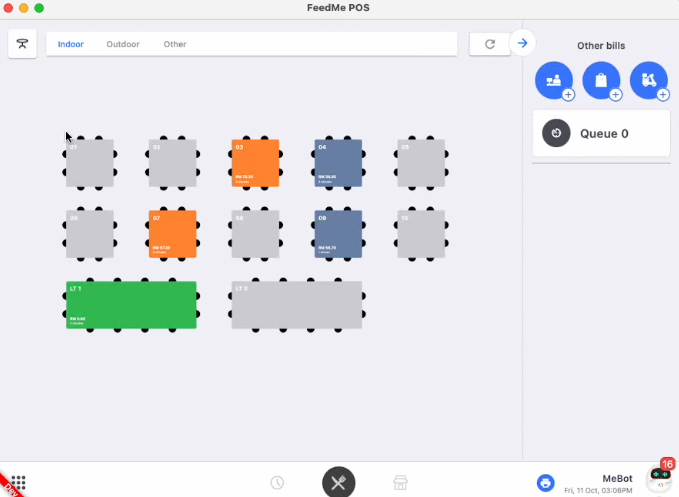
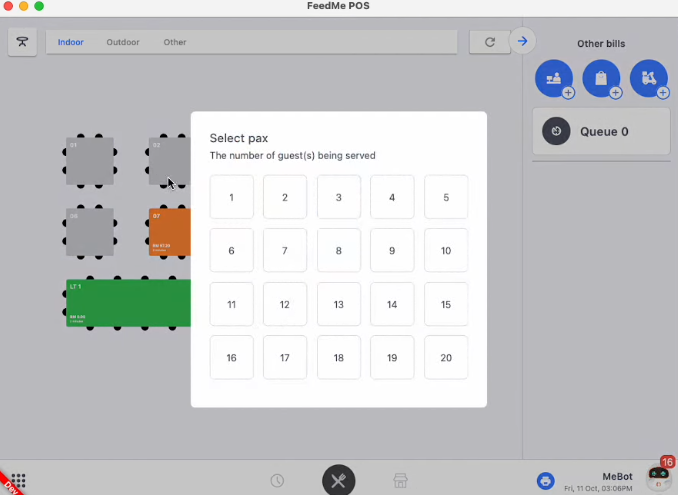
POS Table Selection
Select an occupied or available table from the POS grid to start or continue service.

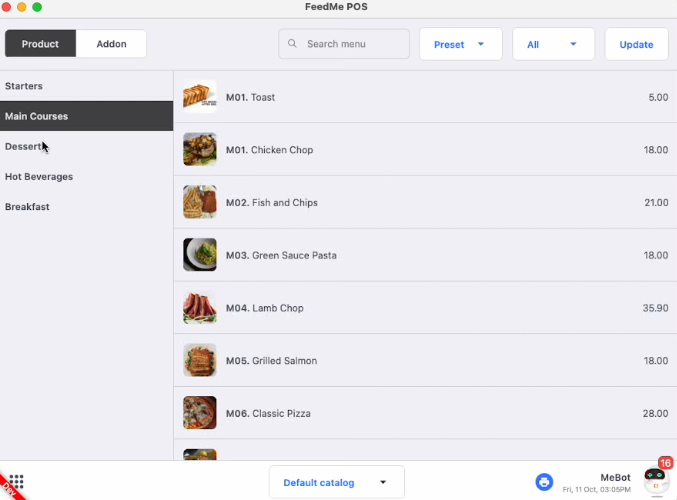
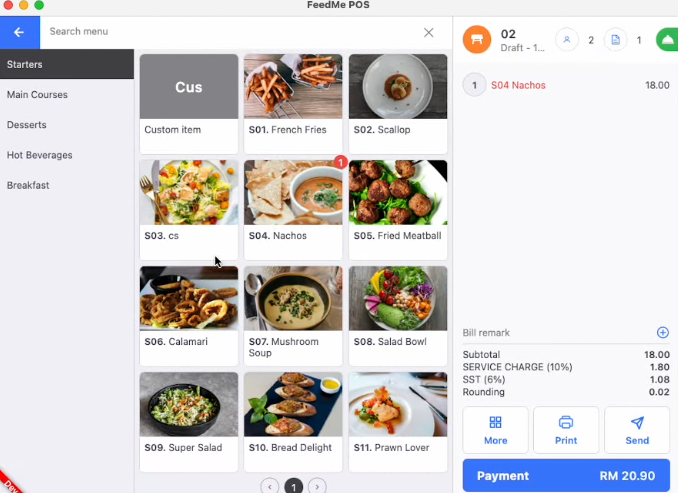
POS Order Entry
Choose a menu category and add a food item to the current table bill.

Order Actions
Access actions such as void, discount, move and voucher from an active order.

Apply Discount
Review an order after a discount has been applied.

Payment Confirmation
Review the payment confirmation interface after completing a transaction.

Inventory Navigation
Access inventory tools from the FeedMe application menu.

Inventory Item List
Review inventory entries and available quantities in the stock listing.

Sales Overview Dashboard
Read the sales overview with headline figures and graphical summaries.

Reporting Date Filter
Apply a reporting date or period using the dashboard calendar control.

Transaction Detail
Inspect individual transactions and their line-item details.

Transaction History
Filter completed transactions and review a selected order history.

Daily Sales Table
View the daily sales table with revenue and discount values.
From first order to clearer operations.
Follow restaurant service and back-office processes using real FeedMe application screenshots. Select a workflow, then choose a step to see what happens and why it matters.
Choose a table
Choose a dining table or service area in the POS table grid. An occupied table is visually distinguished from an available one.
A staff member can identify the correct table before creating or continuing a bill.
Add menu items
Open the ordering view and select menu categories and products for the table. Confirm quantities and the running bill.
Orders can be built using the restaurant menu instead of manually re-entering product descriptions.
Review order actions
Use the order action menu when adjustments are needed, such as an authorised discount, item void or table move.
The available controls help staff adjust an in-progress order in a controlled way.
Confirm the total
Inspect the bill after a discount or other change. The displayed total reflects the updated items and applicable adjustments.
Staff can confirm the amount payable before finalising the transaction.
Complete checkout
After payment processing, the POS displays a confirmation screen with options to print the receipt or start the next bill.
The order moves through a clear checkout stage; settlement methods depend on the setup.
Configure menu variants
Open the back-office menu area to maintain product variants such as options and serving choices.
Menu variants help keep ordering options consistent across service.
Set modifier rules
Create or edit a group of modifiers and review option selection requirements.
Clear modifier rules support more consistent order customisation.
Publish menu changes
Review the menu publishing controls after editing products, groups or categories.
Publishing makes the configured menu version available to the relevant channels, subject to setup.
Review inventory
Open the inventory list to examine tracked ingredients or stock entries and their displayed quantities.
Inventory records provide visibility into configured stock items.
Check sales reports
Open daily sales and choose the reporting period to examine sales totals, discounts and transaction counts.
Management can review recorded sales activity for the chosen dates.
Less Waiting, Better Dining.
Discover practical ways to simplify orders, table service, payments, inventory and daily restaurant reporting.
Orders pile up during busy hours.
Manual order handling can slow down service and cause missed items.
Keep orders organised.
FeedMe POS helps staff capture orders and route them through supported restaurant workflows.
- Enter orders at the counter or table
- Manage menu items and modifiers
- Send orders to the kitchen where configured
Tables become difficult to manage.
Without a clear view of seating and bills, staff can lose track of active tables.
Simplify table service.
Supported FeedMe table-management tools help teams organise dining areas and track open orders.
- View table status and orders
- Update dine-in bills
- Coordinate table service
Splitting bills takes too long.
Complex payments at checkout can increase queues and slow table turnover.
Make checkout easier.
FeedMe POS supports payment and billing workflows, with options depending on the selected configuration.
- Review active bills
- Apply supported discounts
- Handle configured payment options
Ingredient usage is hard to follow.
Unclear stock records can lead to shortages and unexpected waste.
Improve stock awareness.
FeedMe inventory capabilities can help track relevant items and ingredient usage where enabled.
- Maintain inventory records
- Review stock availability
- Track configured ingredient usage
Daily performance is unclear.
When sales data is scattered, managers struggle to spot patterns and plan staffing.
See restaurant sales clearly.
FeedMe reporting tools provide supported sales and transaction summaries for day-to-day review.
- Review sales summaries
- Identify popular menu items
- Monitor transaction activity
From restaurant orders to MyInvois reporting.
See how FeedMe helps restaurants issue e-Invoices and track submissions through its portal. Follow the four stages below and confirm the exact setup with your FeedMe implementation provider.
Capture the order accurately
Create and settle the restaurant bill in FeedMe POS. Review items, discounts, taxes and payment details so the sales record is accurate before e-Invoice processing.
Prepare the right e-Invoice details
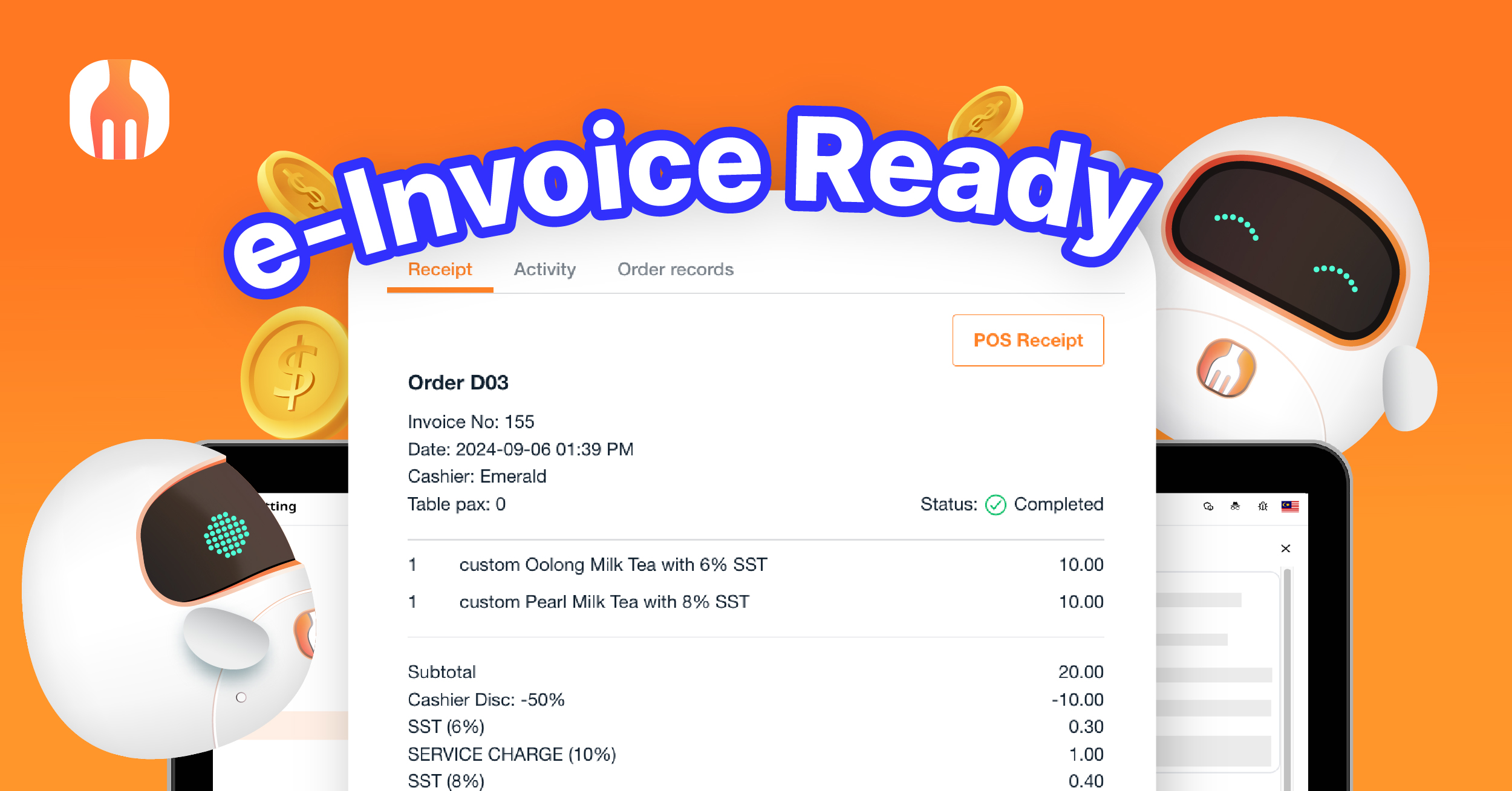
FeedMe advertises e-Invoice generation for restaurants. For an individual request, confirm the buyer identity and applicable tax details. Other qualifying sales may follow a consolidated submission process.
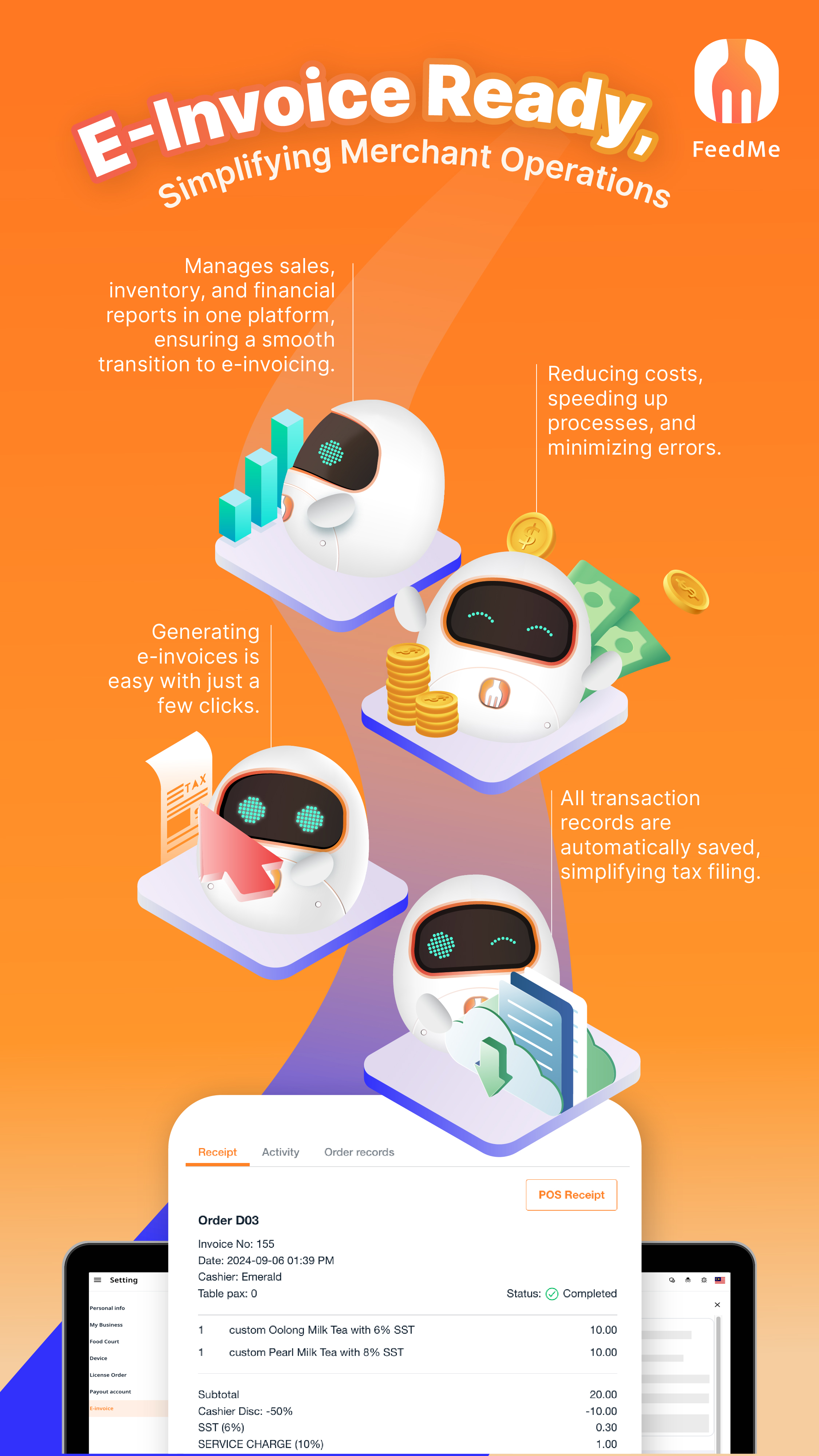
Submit using the authorised integration
Authorise FeedMe as an intermediary in LHDN MyInvois and configure the merchant e-Invoice profile for supported submissions. The FeedMe image illustrates e-Invoice generation; submission timing depends on document type and configured workflow.
Check the status and retain records
Review FeedMe e-Invoice submissions under Settings > E-Invoice > Submissions. The example image shows a Valid record in Malaysia’s MyInvois portal (not the FeedMe interface); check status and document identifiers before exporting records.
Match the process to the transaction.
Requirements depend on current LHDN rules, account setup, and the applicable FeedMe product release.
When a customer requests an individual e-Invoice, capture the required buyer information and use the supported claim and submission process.
Example: a customer requests an e-Invoice for a business expense.Qualifying restaurant sales may be included in a consolidated submission, depending on current LHDN rules and the FeedMe configuration.
Example: eligible consumer receipts not individually claimed.Confirm MyInvois intermediary authorisation, the FeedMe merchant profile and the correct status of each submitted document.
Example: filter FeedMe submission history and export records for review.FEEDME POS / SYSTEM COMPATIBILITY
System requirements.At a glance.
Compatible devices and plan-dependent restaurant tools.
| Compatible POS hardware | D3 Pro, Mix Series | Vendor-listed models |
|---|---|---|
| Kitchen display hardware | Swan 1K | Confirm selected setup |
| Order display hardware | K1 | Confirm selected setup |
| Payments and kiosks | Swift 2, X1, Crane 1 | Model and service dependent |
| QR ordering | Standard and Premium plans | Plan-dependent |
| Accounting integration | Standard and Premium plans | Plan-dependent |
| Kitchen Display System | Premium plan | Plan-dependent |
| Minimum CPU / RAM / OS | No universal specifications verified | Confirm by device |
FeedMeFits the Way You Serve.
From an independent coffee counter to a busy full-service restaurant, every F&B business has its own rhythm. FeedMe brings adaptable restaurant technology to different service formats, team sizes and operating environments.
One ecosystem, different operating styles. The focus is not on repeating software features, but on where FeedMe can fit—from fast-moving counters and table service to multiple restaurant outlets.
 01 / 05
Cafés & Bistros
For places where morning coffees turn into lunch rushes. Support smooth counter service, dine-in guests and changing menus without losing the relaxed customer experience.
 02 / 05
Full-Service Restaurants
Created for table-oriented dining environments where floor organisation and coordinated service matter.
 03 / 05
Quick-Service Outlets
Well suited to high-volume ordering, takeaway counters and businesses where every minute counts.
 04 / 05
Bakeries & Dessert Shops
For display-led menus, takeaway treats and busy service periods throughout the day.
 05 / 05
Multi-Outlet F&B Brands
For operators growing beyond one location who want greater consistency and central visibility.
Built around your service model—not the other way around.
Whether your priority is a simpler checkout, dine-in operations or managing more than one outlet, the right FeedMe configuration depends on your concept, hardware and selected plan.
Built for growing F&B operations.
Explore connected kitchen workflows, digital ordering, customer tools, inventory, reporting and AI-assisted features supported by the FeedMe ecosystem.
Kitchen Display
Digitise kitchen tickets so preparation teams can see incoming orders and coordinate food preparation.
QR Code Ordering
Let guests browse digital menus and place their own orders through supported QR workflows.
Delivery Integration
Bring supported delivery-channel orders into the restaurant workflow and help keep menus consistent.
Stock Inventory
Track ingredient and item quantities to support purchasing and reduce avoidable shortages.
Loyalty & CRM
Use customer information, rewards and promotions to support repeat visits and tailored engagement.
Unified Outlet Management
Centralise selected menus, reporting and operations when managing more than one location.
Report Engine
Review sales patterns and operating results using FeedMe reporting and analysis tools.
AI-REMY
Explore AI-enabled recommendations, menu assistance and business insights within supported products.
Everyday restaurant controls.
Beyond core checkout, FeedMe offers operational tools that can help your team manage service and make informed decisions.
Table & Floor Plans
Organise dining tables and floor plans to support smooth dine-in service.
Dining-room visibilityMenu & Modifiers
Maintain menu items, options and add-ons for consistent order entry.
More reliable order captureDigital Payments
Use the compatible tender methods available in your POS deployment.
Flexible checkoutStaff Roles
Assign appropriate permissions so employees can access relevant functions.
More structured controlsCustomer Promotions
Configure available offers and incentives to encourage return visits.
Customer engagementScheduled Reports
Review regular business performance updates where your plan supports them.
Simpler daily oversightActual FeedMe software spotlights.
Restaurant Table Layout
A real table-management view from the supplied FeedMe POS software screenshots.

Menu & Modifier Setup
A FeedMe menu setup screen illustrating configuration of product options.

More examples inside FeedMe POS.

POS Ordering Interface
FeedMe order-entry view illustrating front-of-house transaction handling.

Inventory Overview
A FeedMe inventory screen illustrating stock-management information.

Sales & Transaction Reports
A reporting screen from the supplied FeedMe documentation.
One restaurant platform. Built for different service styles.
See how FeedMe POS can support dine-in restaurants, fast-service counters, cafés and businesses operating across multiple locations. Select a service style to explore a practical workflow.
Dining area / seats
Menus & modifiers
Ticket / display
Bill / payment
Keep dine-in orders organised from table to payment.
Follow a typical seated-service workflow using a table layout, order entry, kitchen communication and final checkout.
Table management is illustrated in your provided FeedMe screenshots. Kitchen routing depends on installed features and hardware.
Counter / kiosk
Sizes & add-ons
Supported tenders
Kitchen / pickup
Move efficiently from counter order to pickup.
A quick-service restaurant or takeaway counter can focus on fast menu entry, optional customisation, checkout and handing the completed order to the customer.
Specific ordering channels and supported payment methods depend on the selected FeedMe package and configuration.
Drinks / pastries
Size / extras
Order review
Pay & receipt
Handle flexible menus and customer preferences.
Use the same FeedMe order and menu tools for a café or bakery, where item variants and customer-specific add-ons can be part of each transaction.
Product variants, modifiers and reports appear in the supplied FeedMe screenshots; actual setup depends on the edition.
Menus / permissions
Branch service
Outlet reports
Management view
Get a clearer view across restaurant locations.
For restaurant groups, separate outlets can follow their own daily workflows while management reviews relevant sales and operating data through supported back-office tools.
Multi-outlet functions, syncing and availability depend on FeedMe plans, modules and deployment configuration.
Frequently Asked Questions
Answers to common questions about FeedMe POS, restaurant ordering, QR menus, kitchen coordination, reporting and choosing a suitable setup.
What is FeedMe POS, and which plan should I choose?
FeedMe POS helps food and beverage businesses handle counter orders, dining tables, menus, payments and reporting. Its published plans include Lite, Standard and Premium, with different levels of QR ordering, kitchen systems and integrations.
Can customers order and pay using QR codes?
FeedMe offers QR Code Ordering so guests can browse a digital menu and submit orders from their phones. Online payment options can be included through a supported payment integration, depending on your plan and setup.
How does FeedMe coordinate orders with the kitchen?
FeedMe supports a Kitchen Display System (KDS) for presenting incoming orders to kitchen staff and improving preparation coordination. Other ordering and display options depend on hardware, outlet configuration and subscribed features.
Can FeedMe manage stock and generate sales reports?
FeedMe provides restaurant stock inventory tools and sales reporting features. Depending on the product package, managers can review sales trends, monitor available stock and use additional report functions to understand daily performance.
Can FeedMe support multiple restaurant outlets?
FeedMe publishes unified outlet management capabilities for operators handling multiple locations. Suitable configurations can help managers review outlet-level activity and maintain consistent information across their restaurants.
How do I set up FeedMe POS and obtain support?
Start by identifying your restaurant type, number of outlets, service areas, ordering channels and payment requirements. A FeedMe consultant or local implementation partner can then advise on the POS plan, compatible hardware, setup and staff training.