

Retail, Simplified.
Manage checkout, inventory, customer records and retail reporting through one connected POS solution.


Sell Smarter. Manage Better.
Simplify retail and F&B operations with iRS POS. Manage sales, inventory, customer memberships and daily transactions through a connected platform. Gain better visibility into business performance while keeping operations organised across multiple outlets.
One platform. Connected retail possibilities.
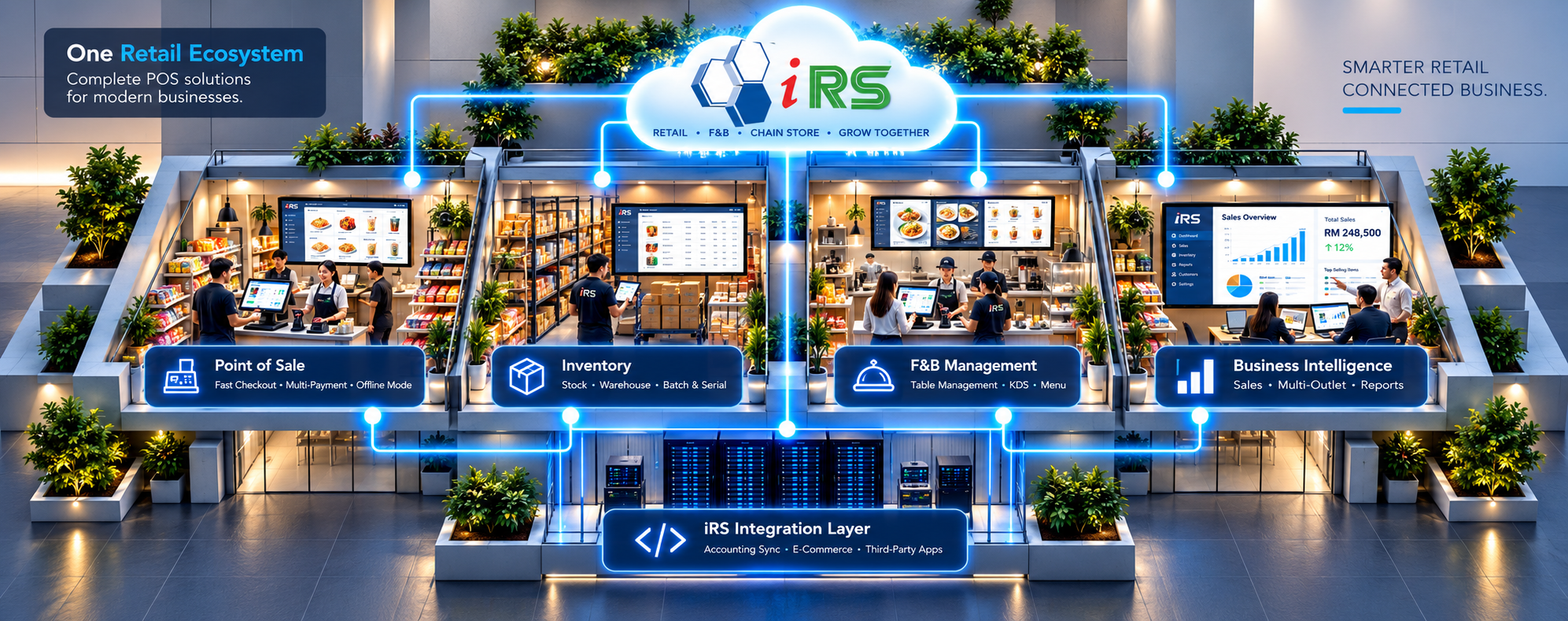
Select a highlighted area in the iRS illustration or choose a category below.
iRS POS / Retail POS
Retail checkout
Process counter sales, apply eligible discounts, manage payments and issue receipts using the retail POS workflow.
- Barcode/item entry
- Discounts and vouchers
- Payment processing
iRS POS / Inventory
Inventory & purchasing
Maintain product records, review stock levels and support purchasing with stock reorder reminders and goods received documents.
- Stock and item records
- Low-stock reminders
- Purchase orders
iRS POS / F&B POS
Restaurant operations
Handle table-based dining and F&B orders through the separate iRS restaurant solution, with bill splitting and kitchen messaging where configured.
- Table plans
- Split and combine bills
- Kitchen order printing
iRS POS / Loyalty
Customer & member management
Manage customer records, membership points and purchase histories to support customer engagement and repeat sales.
- Member records
- Points management
- Purchase history
iRS POS / Multi-Store
Multi-store management
Connect branches with head-office data consolidation and coordinated product, promotion and stock information using the iRS Multi-Store offering.
- Branch data consolidation
- Centralised item settings
- Inter-branch stock transfers
iRS POS / Reports
Sales & business insights
Review transaction performance using sales analysis, top-selling item, gross-profit and inventory reports available in the selected system.
- Sales analysis
- Best-selling items
- Inventory reports
Explore the iRS POS Interface Behind Everyday Operations.
Browse real iRS POS software screens across retail checkout, stock, membership, multi-store management and business administration. Choose an area, then select a feature to inspect its interface.
Sales Screen
Sales screen with item entry and transaction controls.
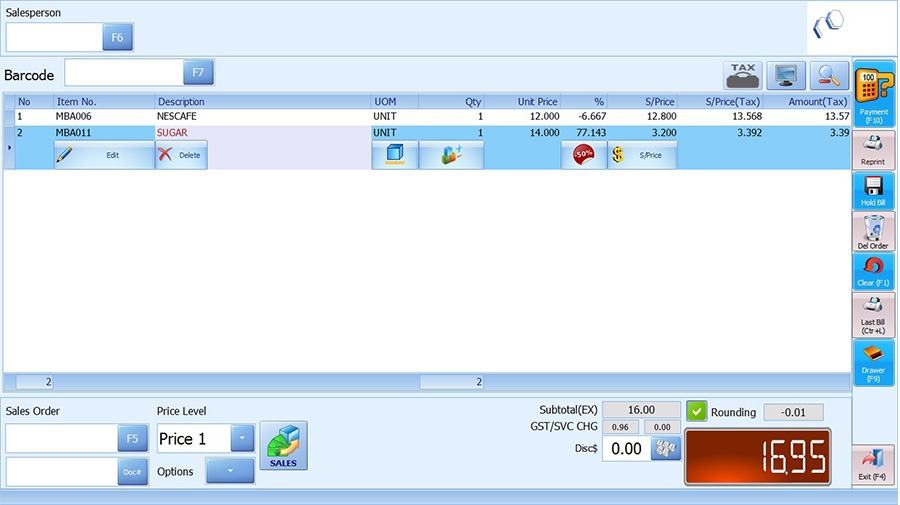
Cashier Item Entry
Use the sales screen to select a product and adjust the current bill.

Payment Screen
Inspect payment types and payment amounts before completing checkout.
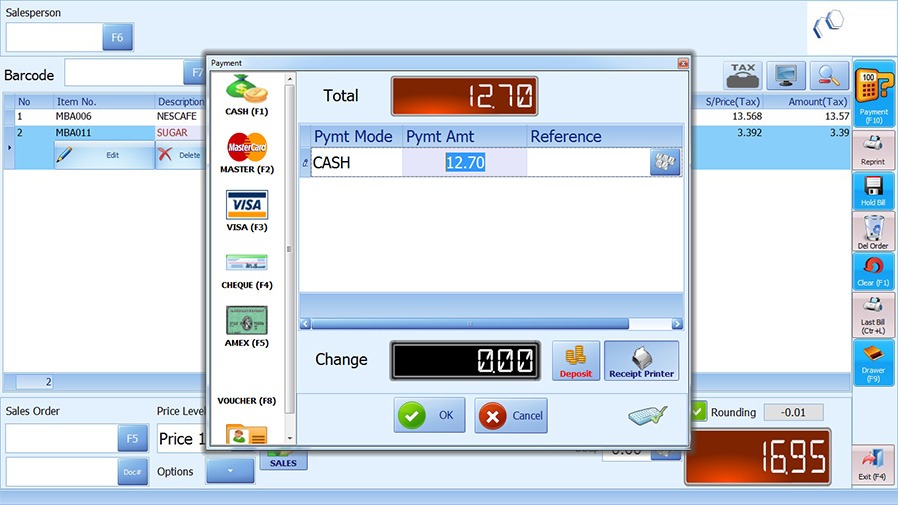
Payment Dialog
Review a compact payment window over the open sales screen.

Previous Bills
Look up a completed bill for transaction review and customer service.
Item Master
Maintain each product’s item code, descriptions, pricing and stock fields.
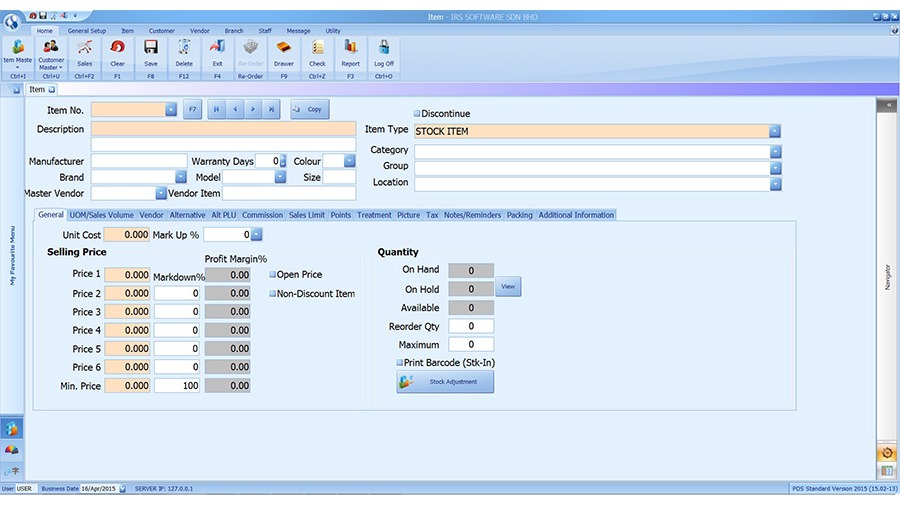
Alternative Item Master
See an earlier IRS item maintenance interface illustrating stock and six price levels.
Stock Reorder
Review item reorder quantities and stock balances before replenishment.

Excel Item Import
Use the IRS data import interface to prepare and load item master information.

Data Export
Select system data fields to export for offline analysis or records.
Customer Master
Manage a customer’s contact information, status and points within the customer master.
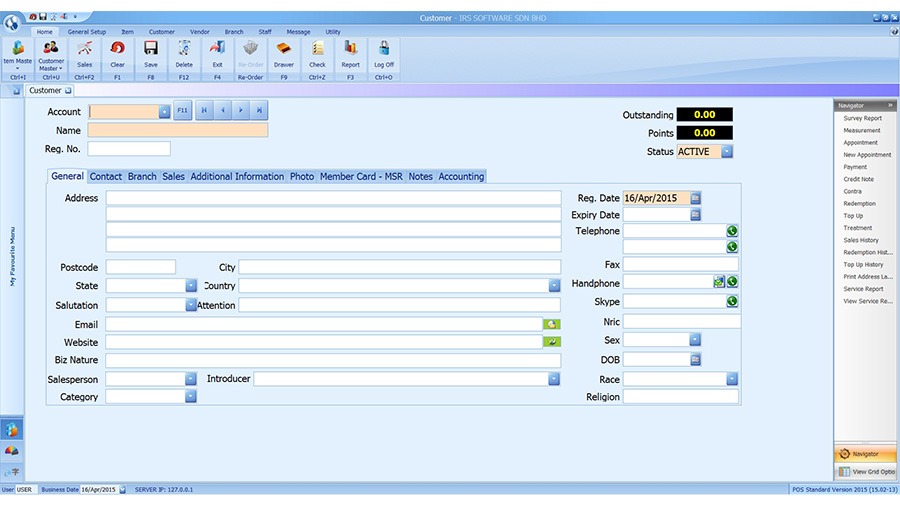
Membership Overview
Review member profile details, registration dates and loyalty balances.

Item Reward Points
Maintain entitled and redemption points for product categories.

Branch Points Lookup
Trace loyalty-point transactions across linked outlets.

Branch Setup
Enter branch identity and contact details for a multi-store deployment.

Stock Transfer
Prepare goods movements between HQ and branches using stock-transfer documents.

Goods Received
Review incoming branch stock documents and their confirmation status.

Branch Purchase Order
Create branch purchasing requests with item lines and expected receipt details.

Branch Stock Lookup
Check item quantities across locations where branches are connected.

Branch Sales Lookup
Inspect sales documents across branches for a selected customer and date range.

Daily Collection
Calculate daily collection and review cashier cash-denomination records.
Report Navigator
Browse built-in report categories for sales, items, discounts, customers and more.
Sales History
Inspect a previous transaction and the related customer, payment and item information.

System Backup
Identify source and destination paths for an IRS database backup.

Company Profile
Review essential business settings used for receipts and system records.

Sales Preferences
Configure permitted point-of-sale behaviours and transaction settings.

User Access
Set individual staff access to the relevant system functions.

Security Groups
Maintain user-group permissions for viewing, editing and approving tasks.

Vendor Preferences
Review supplier-related preferences and their accounting-link settings.

Supplier Address Labels
Select vendor or customer records for printable address labels.

Staff Records
Maintain sales staff reference codes and basic contact information.

SMS Messaging
Locate the SMS and email messaging tools available in the IRS interface.
From daily checkout to smarter stock control.
Explore two everyday iRS POS processes using real product interface screenshots. Choose Retail Checkout or Stock Management, then select a step to see how it works.
Select Customer
Choose or locate the customer before a sale, particularly when a member needs to receive the relevant price or loyalty benefit.
Customer information can be associated with the transaction when the business uses customer records.
Start Sale
Open the sales interface and scan or select items. Check the displayed item descriptions, quantities and prices.
A single transaction list helps the cashier review the basket before applying settlement.
Review Discounts
Verify item pricing and apply permitted discounts, vouchers or promotions when the relevant options are configured.
The final payable amount should reflect the chosen items and eligible discounts.
Accept Payment
Select Subtotal to proceed to settlement, then confirm the payment details and complete the checkout.
A completed sale records the payment and supports the associated customer receipt.
Review Last Bill
Use the Last Bill function to review recent completed transactions where access is permitted.
A previous sale can be found for routine cashier follow-up and verification.
Maintain Items
Set up or maintain an item with its barcode, description, unit of measure and applicable pricing details.
A consistent item master helps staff select and scan the correct products.
Receive Stock
Record products received from a supplier and check the incoming quantities against the delivered goods.
Goods receiving supports current inventory balances and purchasing records.
Check Stock Levels
Generate the stock reorder listing and review products that may require replenishment.
Staff can identify products for purchasing before popular lines run out.
Transfer Stock
For multi-store setups, choose the source and destination branch and select the items and quantities to transfer.
A saved transfer documents the stock movement between participating branches.
Review Stock Reports
Review inventory or stock-related reporting to investigate item quantities and activity, subject to configured reports.
Stock reports provide an audit trail for replenishment and reconciliation.
Everyday Challenges. Smarter POS.
Explore how iRS POS supports faster service, stock control, customer loyalty and multi-outlet operations.
Long queues slow down service.
Manual checkout steps can increase waiting times and lead to mistakes.
Speed up everyday transactions.
iRS Retail POS supports product scanning, bill handling and payment workflows for counter sales.
- Find items and scan barcodes
- Apply eligible discounts
- Process supported payments
Stock records fall behind.
Unclear stock levels make replenishment and product availability harder to manage.
Keep inventory organised.
iRS inventory features help teams manage item records, review stock levels and prepare purchasing activities.
- View item and stock records
- Identify products needing restock
- Support purchasing workflows
Repeat customers go unnoticed.
Without organised member records, it is difficult to recognise loyal shoppers and run rewards.
Build stronger customer relationships.
Where enabled, iRS membership features track customer records, purchase history and loyalty points.
- Maintain customer profiles
- Manage eligible loyalty points
- Review member purchase history
Restaurant orders get mixed up.
Busy table service can cause missed items, billing confusion and delays between staff.
Organise table and kitchen workflows.
The iRS F&B solution supports table-based orders, bill handling and configured kitchen printing.
- Manage tables and orders
- Split or combine eligible bills
- Route orders to kitchen printers
Branches are hard to coordinate.
Separate outlet records and inconsistent settings limit visibility across locations.
Connect branch operations.
The iRS Multi-Store offering supports head-office consolidation and coordinated product and stock information.
- Consolidate branch information
- Coordinate item settings
- Support inter-branch stock transfers
From POS transactions to MyInvois validation.
iRS has announced a working MyInvois connection with validated e-Invoices. Follow the key stages, while checking the exact submission workflow with your iRS provider.
Start with the completed sale
Record the customer purchase using the iRS POS sales screen. Confirm the item and payment information before preparing an e-Invoice through the applicable module.
Check customer and document details
Review buyer identification and sales data needed for the intended e-Invoice. The exact data-entry and approval screens depend on the configured iRS e-Invoice release.

Use the enabled e-Invoice connection
iRS publicly confirms that its POS e-Invoice module connects to the LHDN MyInvois portal. Submission controls and automation depend on your version and integration setup.
Verify a successful MyInvois result
The iRS vendor’s published example displays a green valid indicator in MyInvois. Confirm the relevant document status and reference before sharing a customer-facing record.
Choose the right e-Invoice approach.
Transaction requirements follow current LHDN guidance; supported automation depends on the licensed iRS module.
An individual validated e-Invoice may be required when requested by a buyer or under applicable LHDN rules.
Example: Business customer requests a validated e-Invoice.Eligible consumer transactions may be reported in a consolidated e-Invoice under current rules. Confirm eligibility and iRS processing support.
Example: Qualifying retail receipts without an individual request.MyInvois connectivity, licensing and data requirements should be checked with the iRS implementation provider.
Example: Enable the correct module and confirm submission behaviour.iRS POS / SYSTEM COMPATIBILITY
System requirements.At a glance.
Published requirements and essential setup considerations.
| Operating system | Windows 7 or Windows 10 (32/64-bit) | Historical vendor specification |
|---|---|---|
| Processor | Dual-core processor | Published minimum |
| Memory | 2 GB RAM | Published minimum |
| Peripherals | Barcode printers, scanners and other supported POS devices | Verify exact model |
| Accounting connections | SQL Account, AutoCount and SAP | Confirm integration scope |
| Multi-store setup | Separate Multi-Store solution; internet for branch transfer | Optional module |
IRS POSFits the Way You Sell.
From neighbourhood grocery stores to specialised retailers, IRS POS brings checkout, product inventory, customer memberships and sales reporting into one retail workflow.
One POS ecosystem, different retail needs. IRS POS supports day-to-day sales, inventory visibility and customer management, with multi-store options for growing businesses.
 01 / 05
Mini Markets & Grocers
Serve everyday shoppers efficiently with streamlined checkout and stock tracking for fast-moving essentials.
 02 / 05
Pet Shops & Supplies
Manage pet food, accessories and repeat customer purchases with organised product records and membership tools.
 03 / 05
Cosmetics & Skincare Stores
Keep track of varied product lines, promotions and customer purchase histories in a busy beauty retail environment.
 04 / 05
Mobile & Gadget Shops
Organise devices and accessories while managing counter sales, customer records and inventory movement.
 05 / 05
Baking Supply Stores
Handle diverse baking ingredients, packaging and tools with clearer stock records and convenient checkout.
Retail operations, made easier.
Whether you operate one store or multiple branches, the right IRS POS setup depends on your retail category, hardware, modules and reporting requirements.
More Flexibility. Better Business Control.
Explore AutoCount features for managing complex stock, multiple companies, reporting and business controls.
Multi-Company
Manage accounting records for separate business entities.
Multi-UOM
Buy and sell stock in units such as pieces, boxes and cartons.
Project Accounting
Track project-related income and expenses.
Serial & Batch
Identify stock by serial number or batch, where supported.
Roles & Approval
Control user permissions and selected approvals.
Report Designer
Adapt supported reports and document layouts.
Plugins & API
Connect compatible extensions and other systems.
Audit Trail
Review available transaction and user activity records.
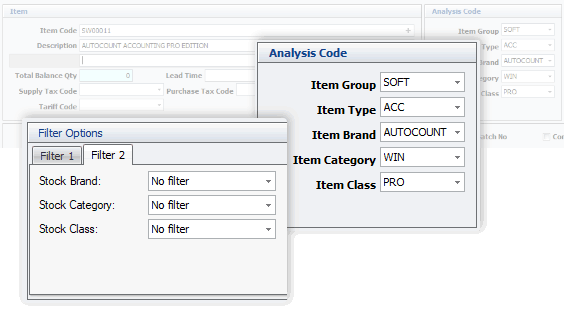
Stock Analysis
Filter stock by category and other item groupings to review inventory more easily.
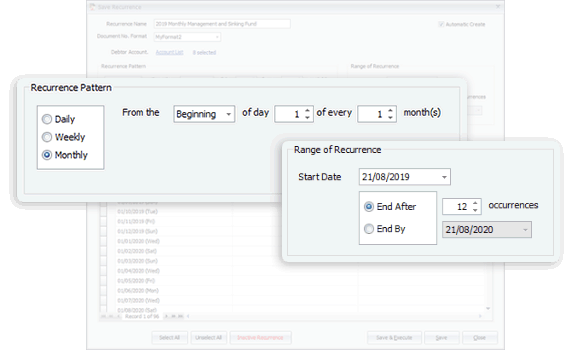
Recurring Transactions
Schedule routine accounting entries using supported reminders or automatic generation.
Build around your business needs.
Start with your everyday requirements, then choose the modules and controls that fit your workflow.
One POS platform. Different Ways to Operate.
Discover how iRS POS supports retail checkouts, restaurant service, multiple cashier terminals and connected branches through its retail, F&B and multi-store solutions.
Barcode / item search
Promotions & membership
Payment / receipt
Sales & inventory
Keep busy retail checkouts moving.
iRS Retail POS supports cashier transactions, barcode-based item selection, discounts, vouchers and member benefits, while giving managers tools to examine sales and stock activity.
Available promotions, tender options and inventory behaviours depend on the enabled iRS retail configuration.
Dine-in / takeaway
Menu & modifiers
Printer / instructions
Split / combine / pay
Connect front-of-house and kitchen service.
iRS F&B supports table plans, kitchen messages and printers, condiment instructions, and restaurant bill handling. Teams can take and amend orders, then settle the customer bill.
Restaurant capabilities require the appropriate iRS F&B product, supported hardware and configured kitchen devices.
Individual sales
Parallel checkout
Server / item data
Sales & user controls
Serve more customers across multiple counters.
iRS provides network licensing options for authorised terminals to access a shared server, helping businesses run additional checkout points and use centrally managed product information.
Simultaneous terminal access, supported device count and data handling depend on purchased licences and network configuration.
Central item setup
Store transactions
Sales & stock
Sync / reports
See the bigger picture across store locations.
iRS Multi-Store lets branches send transaction and stock information to head office for consolidation. Central teams can coordinate item information, promotions and review branch-specific performance.
Near-real-time reporting and synchronisation require the separate iRS Multi-Store setup and suitable internet connectivity.
Frequently Asked Questions
Answers to common questions about iRS retail and restaurant POS, checkout, inventory, customer membership, multi-store management and Malaysia e-Invoicing.
What is iRS POS, and which solution suits my business?
iRS Software provides POS solutions for retail businesses and food-and-beverage operators. Retail POS focuses on cashier transactions, products, stock and customer records. The restaurant solution adds food-service workflows, including table plans and kitchen instructions. Select the appropriate product based on your industry, terminals, branches and required functions.
Can iRS POS manage sales, quotations and payments?
iRS retail POS supports cash sales and customer sales documents, including quotations, orders, invoices and delivery orders as listed in its product information. At the checkout, staff can enter or scan items, review totals, take payment and inspect transaction history. Available options depend on your software setup.
How does iRS POS manage inventory and purchasing?
iRS provides item maintenance, stock monitoring, reorder reminders and supplier-related functions. Its retail and F&B product descriptions list purchase orders, goods receiving, multiple units of measure and supplier records. The configuration determines which stock movements and purchasing steps are enabled.
Does iRS POS support Malaysia e-Invoicing?
iRS Software has announced successful live e-Invoice submission from iRS POS to LHDN MyInvois, including a validated transaction status. The required customer information, submission steps and eligibility for different e-Invoice scenarios depend on the implemented e-Invoice module and prevailing LHDN rules.
Can iRS POS connect multiple stores and branches?
The iRS Multi-Store solution can exchange sales, product, customer, vendor and inventory information between branches and headquarters. Its published functions include central item maintenance, shared promotions, branch stock lookup, stock transfers and consolidated reporting. Synchronisation depends on connectivity and configuration.
How can I get started with iRS POS and obtain support?
Start with your type of operation, outlet count, number of checkout stations, products, hardware and reporting needs. KMS AutoCount can discuss an appropriate iRS POS package, installation, data setup and user training. iRS also publishes product guides and support materials for day-to-day operation.